
SelfManager.ai v6: AI Everywhere and Customization, the Summer 2026 Release
The short version
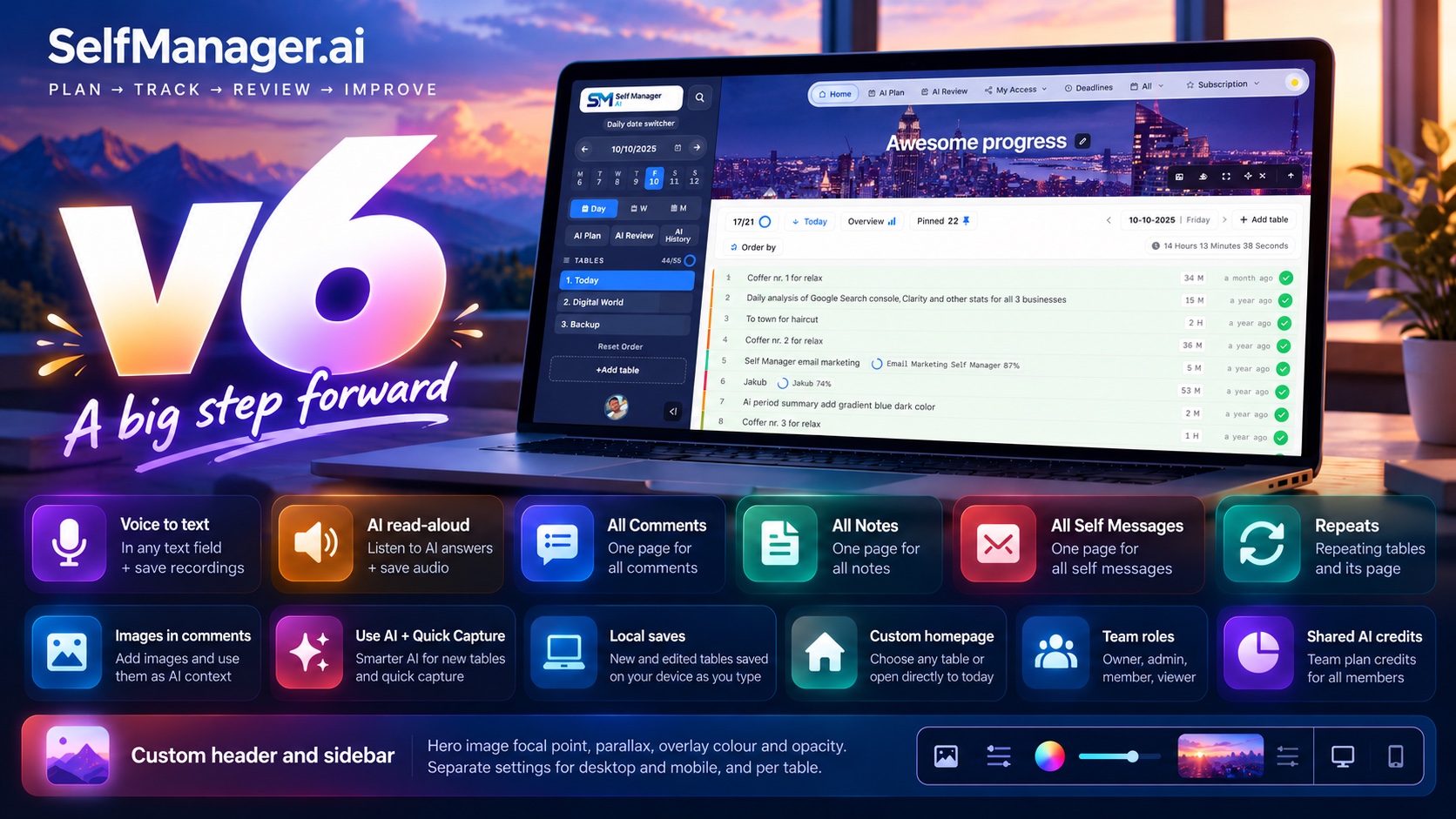
SelfManager.ai v6 was the summer release. It shipped piece by piece, from July 27 to September 17, 2026, and its theme was AI everywhere, and an app you can make your own.
It brought voice to text in every place you write, and AI that reads its answers back to you. Every AI answer got a regenerate button. New pages gather everything you have written. Team accounts got four roles, AI credits shared by role, and an AI Review written for the whole team. The header and the sidebar became yours to frame. And there were Repeats, a homepage table, images in comments, AI that can look at your images, a rebuilt AI Plan, Quick Capture, and drafts that survive a closed tab.
Each piece was announced on our About page as it shipped. This article puts all of it in one place, with the details.
Where v6 sits
In May, v5, codename BFR Booster, moved the whole backend onto an enterprise database. Almost nothing visual changed. It was the booster for what came next.
v6 was the first big wave built on it. It was about how you use the app every day: talking instead of typing, listening instead of reading, working in a team, and a workspace that looks the way you want.
Then in October came v7, codename AI or SI, Baby?: your choice of AI model, and audio, docs and video on every table.
Say it instead of typing it
The fastest thought is the one you never have to type. Since July 29 there is a microphone everywhere you normally write: table comments, table notes, and every AI prompt box, from AI Plan and AI Review to table chat, pinned-tables chat and task generation. Today it works in task names too. Tap it, talk, and the text lands in the box on its own line, ready to edit.
Your voice, only if you want it kept
After a comment or a note is transcribed, SelfManager asks whether to keep the audio. Keep it and a player sits right under the comment. Delete it and only the transcript remains.
In AI prompt boxes nothing is kept, because a prompt is something you send, not something you keep. The recording is deleted once its words are in the box.
All Recordings
Every recording you chose to keep, newest first, each with its transcript and a link straight back to the table it came from. Recordings are converted after upload so they play in any browser, and you can delete any of them without touching the text they produced.
Take any recording with you
Since July 31, every stored recording has a download button next to its player: under the comment, under the note and on the All Recordings page. The file is named by its date and the opening words of its transcript, so you can still tell what it is months later.
"Download my recordings", with the other exports in your profile, bundles all of them as playable audio with a transcript index. That is every recording on tables you own, plus your own recordings on tables shared with you.
Dictation started at ten minutes a recording. Since v7 it runs up to 30 minutes, at 1 AI credit per started five minutes, and the words appear as you speak.
If you are comparing apps, here are the AI task managers with voice capture, and how to keep voice notes for client projects next to their tasks.
The AI reads back to you
Since August 1, every AI answer has a speaker icon next to the copy button: your AI Review, your AI Plan, table chat, pinned-tables chat and saved conversations. Press it and the answer is read aloud, so a long review can happen while you walk, drive or do the washing up.
A real player, not a play button
Playback goes up to 2x speed. You can jump 15 seconds back or forward, scrub anywhere on the bar, and download the audio. The same controls landed on the voice-note players too, in comments, notes and All Recordings.
Keep the ones worth keeping
Read-aloud audio isn't stored by default: it is made, played and forgotten. When a take is worth keeping, the player has a save button, and saving costs nothing extra because the audio already exists. A saved take joins All Recordings with a "Read aloud" badge, so it is never confused with your own voice, and "Download my recordings" includes it with the text it was read from.
It comes back with the answer
A saved take belongs to that AI answer. Reopen the AI Review, the plan or the saved conversation a week later and the player is already there, free to replay. You never pay twice for audio you have kept.
What it costs
Read aloud is 1 AI credit per 2 minutes of audio, and the button tells you the price before you press it. Anything long enough to matter asks you first, and replaying audio you already made is free.
Didn't like that answer? Ask again
Every AI answer also got a regenerate button, next to copy and read aloud. That covers your AI Review, AI Plan, table summaries, every chat and follow-up, and the saved conversations in AI History. It runs the same request again and replaces the answer with a fresh one.
It asks first and tells you what it costs, since regenerating starts at the same price as the original. If you had made read-aloud audio for that answer, it warns you the audio will be discarded and reminds you that you can save it first. It stays quiet when the audio is already saved, because then there is nothing to lose.
When something fails, it stays visible. A failed AI Review used to show a message that faded and left an empty panel. Now the failure stays on screen, with a Try again button right there.
Everything you have written, in one place
Your comments, notes and self messages have always lived inside the day they were written. That is the right place while you are working, and the wrong one when you want to look back. On July 27, three pages fixed that:
- All › Comments: comments across every table and date, newest first, shown exactly as they are in the table. YouTube videos play inline, links stay links and mentions stay mentions. Each one shows the table it came from and opens it in place. Mine shows just the ones you wrote.
- All › Notes: every table's notes, ordered by the table's own date, so the timeline reads like your calendar rather than your edit history. Notes keep their formatting, and long ones stay collapsed until you open them.
- All › Self Messages: the messages you leave yourself, day by day, grouped by month and going back as far as you have been writing them.
They live under the new All menu in the top navigation, with Dates and Images. Recordings and Repeats joined it during v6, and Docs and Videos in v7. On mobile the same group sits in the menu.
Teams: four roles, shared credits, and a review for the group
Four roles, so sharing is no longer all-or-nothing
Until August 8, sharing a table handed over everything. Whoever you invited could edit every row, change the settings, clear the activity log and invite other people. That is fine for a co-founder and far too much for a client you only want to keep in the loop. Now you pick a role when you send the invitation:
- Owner: the person whose table it is. Everything an admin can do, plus duplicating the table, deleting it, and deciding who its admins are.
- Admin: everything a member can do, plus running the table: its settings, its activity log, and inviting or removing people.
- Member: works on the table: rows, comments, files, notes, and AI on that table.
- Viewer: reads all of it, every row, every comment and the whole history, and changes none of it.
Each person's role is a dropdown in the sharing panel, so you can correct a choice without removing anyone and inviting them again. Admins can change members and viewers, and only the owner changes an admin. That last rule is deliberate: if an admin could demote another admin, they could then remove them, and "only the owner manages admins" would mean nothing.
Invitations now say what they offer. The email and the invitation page name the role and describe it in a sentence, before you accept.
AI credits that follow the role
On the Team plan, the people you invite don't need a plan of their own to work on your tables, and your plan's AI credits are shared with them. Admins and members can spend from your pool. Viewers can't, because read-only access shouldn't be able to spend your money.
What did my team work on?
Since August 1, AI Review has a scope switch for Team accounts: Mine, Shared + mine, or My team. My team narrows the review to the tables you own and share with your members, so a weekly "what did the team do" is one click for any week, month, quarter or custom range. Your choice is remembered.
A team review is written for the group, in the third person, rather than addressing you about work you may not have done. It is organised by table and by theme, deliberately not a per-person breakdown, a ranking or a count of tasks per head. It is a status digest your team can read together, not a performance review.
Tasks also started remembering who completed them and who added them. On a shared table, that is the difference between "this got done" and knowing who to ask about it. Tasks completed before that day have no name attached, and the AI is told never to guess one.
With it, "Period Summary" became AI Review everywhere. Here is how to run an AI team retrospective with it.
A header and a sidebar that are yours
Your header photo, cropped where you want it
The photo at the top of the app used to be locked to its centre. That is fine for a landscape and wrong for almost everything else: faces cut off, the subject out of frame. Since August 2 there is a crosshair in the header controls. Press it, drag the ring onto the part of the photo that matters, and the crop follows your finger. It is saved to your account, so it survives a reload.
The focal point is stored as a position in the photo, not a fixed offset, so making the header taller or shorter re-crops it on its own. It is kept separately for desktop and for mobile, where the header is much shorter and crops hardest.
A table can also have a header photo of its own: on any of its images, press Set as table header. That table keeps its own crop, again for desktop and mobile, while your other tables use your account's.
While you choose, the navigation and your self message fade out so you can judge the photo on its own. Cancel restores what you had, and Done keeps what you set.
One fix you may have noticed without touching anything: the photo never actually rested where it claimed. It sat about a third further down than "centre" implied. Headers left on the default now rest truly centred.
Parallax, yours to switch off
The photo drifts a little as you scroll. That is now a switch, set separately for desktop, where it starts on, and for mobile, where it starts off. If your focal point sits near the bottom of the photo, the switch tells you it has no effect, since there is nothing below the bottom edge to reveal. It says the same for a photo too wide to have any room to move, instead of offering a control that quietly does nothing.
Height and overlay
These sit with the rest since v4.1. On desktop, the header drags to any height you like; on mobile it comes in small, medium and large. The overlay above the photo takes any colour and opacity, set separately for the dark and the light theme.
The sidebar too
The left sidebar's background photo got its own focal point in v6, next to its overlay colour and opacity for the dark and the light theme.
Pick the table you land on
Opening the app has always put you on today. That is the right answer for a daily to-do list, and the wrong one if the table you actually live in is your goals for the year, a project plan or a habit tracker. Since September 3, any table can be your homepage. Tick Set as homepage in its settings, or on the new-table screen, and the app opens straight to it.
It is your setting, not the table's. On a shared table each person picks their own, and a viewer on someone else's table can set it as their homepage without any say over the table itself.
The logo goes where the front door goes, so with a homepage table set it opens that table. Today keeps its own button in the date switcher, in the sidebar on desktop and on the greeting card on your phone. It only shows when you have a homepage table and aren't already on today.
Every time the app opens your homepage table, it says so and names the table. Transfer that table to another day and your homepage follows it. Delete it and the setting clears itself.
Marian Sorca's own setup is in My Day Lives in One Place.
A closed tab doesn't lose your work
Since September 4, Add Table and Edit Table save what you type in your browser as you go. Close the tab by mistake, or let the laptop battery die, and the next time you open the form it offers your unsaved draft: "Unsaved draft from 2 hours ago", with Restore and Discard.
It is an offer, never an automatic restore. A form that silently fills itself with a name and ten rows you don't remember typing would be alarming, and it would look like something you saved. Nothing is filled in until you choose. A draft stays in that browser for 7 days, for your account only.
Repeats: tables that come back on their own
Some tables come back: a morning routine, a Friday review, invoices on the first of the month. Until September 6, you either rebuilt them by hand or duplicated last week's and edited out what had moved on. Now any table can repeat. Open Add Table, or edit a table you already have, and set Repeat: every day, weekdays, weekends, days you choose, every few days, or a date each month. Before you save, a strip of the next fortnight shows the days it will actually land on.
The table you set it on stays an ordinary table
Setting a repeat creates a blueprint: a copy of that table with no date of its own. Each day the schedule lands on gets its own copy of the blueprint, made the first time you open that day. The table you started from keeps its own day and its own contents. There is no special "master" table sitting on some date, because a master on a date raises questions nobody should have to answer: what happens when you delete it, whether its own day counts, whether editing it is different from editing a copy.
Nothing is added to a day that has passed
A repeat only ever fills in today and the days ahead. Switching one on this morning doesn't go back and rewrite March, which is what lets an AI Review of last month give the same answer however often you ask.
Editing a copy changes that day; editing the blueprint changes what comes next
A copy is just a table: tick things off, add a task, and only that day changes. To change what every future copy starts with, edit the blueprint. It opens in the ordinary table editor, with the same rows, priorities, drag-to-reorder and notes. Copies already made keep what they have. If some are still untouched, the editor offers to bring those in line, and tells you how many it left alone because you had already worked in them.
Tasks and notes carry forward; images and comments stay
Notes are instructions, such as "check the staging build first", and that is exactly what is worth repeating. An image is evidence from a particular day, and a comment is part of a conversation that happened on one. Copying either forward would put things on tomorrow that never happened there. So the blueprint carries the name, the tasks and the notes, and says so when you open it.
All in one place, with a way to stop it
All › Repeats lists every repeat in plain words, with the next day it lands on. Pause one, edit its schedule or delete it from there. Deleting a repeat keeps every table it already made, including anything you added to them. One switch covers the whole account: turn it off and your repeats are kept, but nothing new is made until you turn it back on. Deleting one day's copy sticks, too: it doesn't come back the next time you open that date.
Why repeating the right things matters is in Repeat What Works.
Images in comments, and an AI that can see them
Images in comments
Since September 17, a comment can carry pictures: the screenshot of the bug, a photo of the whiteboard, the receipt you are asking about. Attach up to ten when you write it, with the image button or by pasting straight into the box. They upload exactly as you took them, with nothing shrunk or re-encoded, and each one sits under its comment as a thumbnail that opens the full picture.
They go where the comment goes. Delete a comment and its images go with it. Duplicate a table with its comments, or transfer it to another day, and the images follow. On a shared table, only the person who attached an image, the table's owner and its admins can delete it.
The AI can look at your images, when you ask it to
Everywhere you send your tables to the AI, there are now boxes for Comments and Images: in AI Review, on the Summarize and Chat buttons of a table or of your pinned tables, and in AI Plan's Context step. Tick Images and the AI sees the pictures on those tables, not just the words around them. Ask what is in a screenshot, or have a photographed page summarised with everything else. Images attached to comments come along when both boxes are ticked.
Images take more to read than text, so they are only sent when you ask for them. Before anything is sent, you see how many will go and what the request costs. The only limits are the AI model's own: a file over 30 MB is left out, and one request can only hold so much, so past that the newest go.
A table also holds up to 200 images now, up from 100, and comment images don't count towards that.
AI Plan, rebuilt as three steps
AI Plan now asks three things, in order: the Period you are planning, the Context the AI should read, and your Brief. Period and Context fold to a single line once they are set, so the whole setup stays in view. Pick a week, a month or a range of your own, step through them with the arrows, and see the days you are about to plan before anything is spent.
The brief is a conversation, with starters for the things people plan most: a side project, workouts, daily habits. The footer says what is about to happen in one sentence, and the price shows before it runs.
The plan comes back under a week-by-week strip of days. Each day says whether it is approved, skipped or has no table. Click a day to bring its table up, and the strip follows as you scroll. Every table stays yours to edit, move to another day or skip, and the save button names exactly what it will save, down to the number of tables. Generating again asks first, and the plan you already edited stays on screen until you approve its replacement.
Quick Capture, and a better Use AI
Add Table got Quick Capture on September 17, next to Use AI. It puts the task rows, images, settings and repeat options out of the way, and leaves a name, a description and your notes. It is the quickest way to get an idea in before it is gone. Add it, and fill in the rest from the table whenever you are ready. Press the button again for the full sheet; anything you had already set up there is still waiting.
Use AI, the button that turns your text into a table, already let you choose how it treats what you give it: Auto, Structure as-is or Plan from idea, with an optional chat to shape the brief first. v6 gave it the same upgrades as every other AI box: speak your brief instead of typing it, regenerate a reply you don't like, and see the price before it runs.
You find out a feature needs a plan before you try it
If you haven't started your 7-day free trial yet, or your subscription has lapsed, AI Plan, AI Review, AI History and the Summarize and Chat buttons now say so up front. A button takes you to sort it out, instead of letting you write a whole request first. If you use AI on a Team owner's credits, you won't see it.
What came next
v6 made SelfManager listen, talk back and work as a team. v7, codename AI or SI, Baby? took it further. You now choose the AI model, from Gemini, Claude, GPT and Grok. Every table holds audio, docs and video, each with its own page. The AI reads your docs and audio transcripts. You can export everything you keep in the app and delete your account yourself. And the MCP server connects the AI assistant you already use, with the public API close behind.
FAQ
When was SelfManager.ai v6 released?
Piece by piece, from July 27 to September 17, 2026. Each feature was announced on the About page the day it shipped.
What were the biggest features in v6?
Voice to text in every place you write, AI answers read aloud, regenerate, the All pages for comments, notes and self messages, Team roles with shared AI credits, AI Review for teams, a header and sidebar you can frame yourself, a homepage table, Repeats, images in comments and as AI context, a rebuilt AI Plan, Quick Capture, and drafts that survive a closed tab.
Do the people I invite to a table need a paid plan?
No. On the Team plan, the people you invite work on your tables without a plan of their own. Admins and members can spend your AI credits, and viewers can't.
Does a repeating table change days that have already passed?
Never. A repeat only fills in today and the days ahead, so your history and your AI Reviews of it stay as they were.
Is my voice stored when I dictate?
Only if you keep it. In comments and notes, SelfManager asks whether to keep the audio after the words are in. In AI prompt boxes nothing is kept: the recording is deleted once its words are in the box.
What came after v6?
SelfManager.ai v7, with your choice of AI model and audio, docs and video on every table.
Everything in v6 is in the app today. Try it free for 7 days, with no credit card, and start by saying your first task out loud.
Date-based AI Task Manager
Plan smarter, execute faster, achieve more
Create tasks in seconds, generate AI-powered plans, and review progress with intelligent summaries. Perfect for individuals and teams who want to stay organized without complexity.
Get started with your preferred account