
Introducing SelfManager.ai v7. Codename: AI or SI, Baby?
The short version
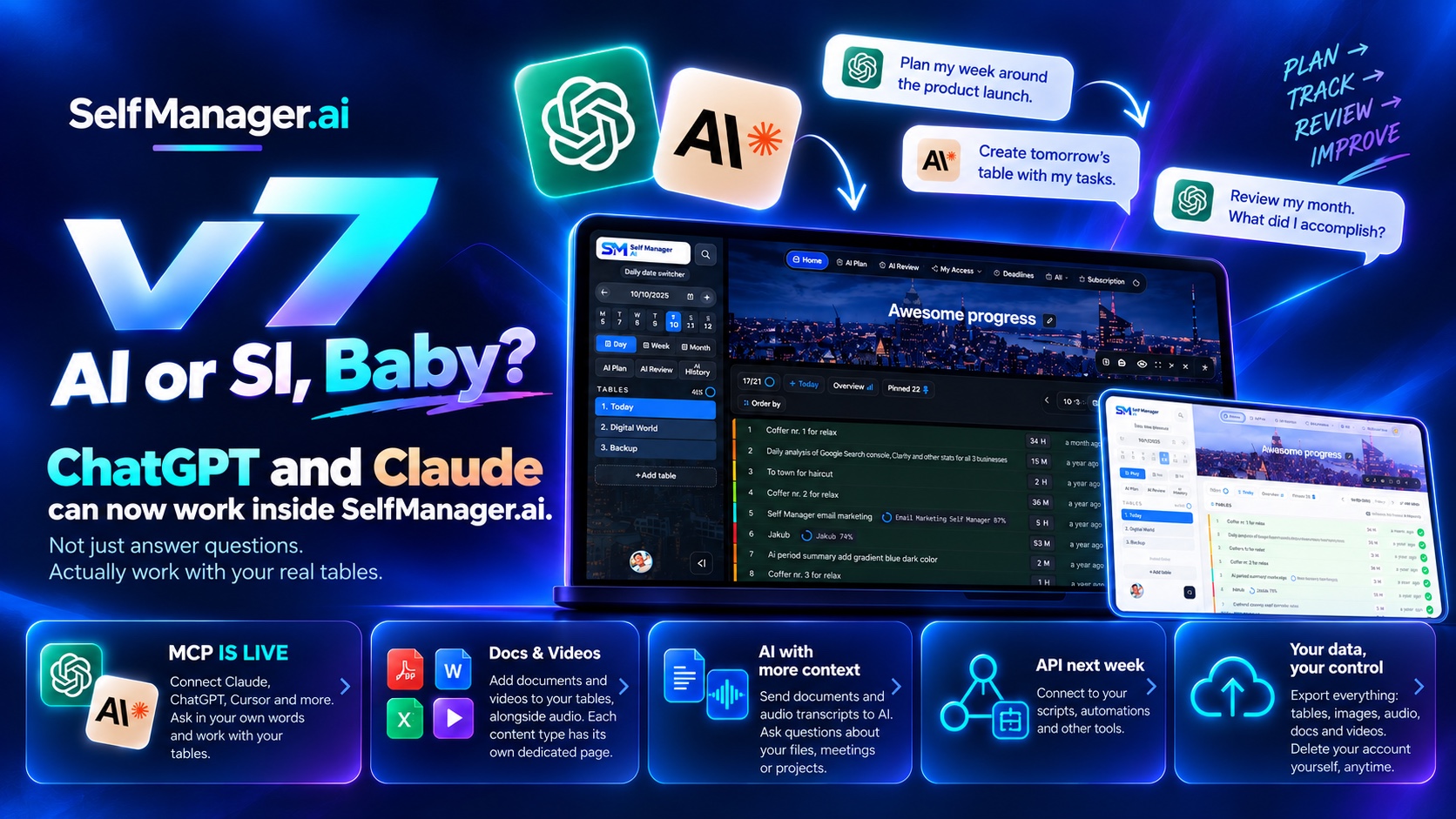
SelfManager.ai v7 is live. Codename: AI or SI, Baby?
Until October, every AI answer in SelfManager came from Gemini. Now you pick the model: Gemini, Claude, GPT or Grok, in Fast and in Thinking, with the price shown before you send.
Every table also has three new sections: Audio, Docs and Video. Each one has its own page that gathers it from all your tables. The AI can now read your docs and your audio transcripts. You can export everything you have ever put into SelfManager, and you can delete your account yourself, without writing to anyone.
Our MCP server is available now, so the AI assistant you already use can work on your tables. The MCP page shows how to connect. The public API follows next week.
v6, the summer release, brought voice to text everywhere, AI that reads its answers aloud, Repeats, team roles, shared AI credits, and a header and sidebar you can make your own. It has its own article, and a short summary closes this one.
Why "AI or SI, Baby?"
Three months ago, the AI in SelfManager was one family of models. Today the menu holds more than a dozen, from four companies. Some of them are among the most capable models released so far: Claude Opus 5.5 and Fable 5.1, GPT-6 Astra, Gemini 4 Argon.
Use them on real work for a while and you start to wonder where artificial intelligence ends and superintelligence begins. That is the question in the codename. We don't claim to know the answer. The "Baby?" is there so nobody takes it too seriously.
What we do know is what any of them should do inside a planner. It should work on your real tables, tell you who answered, and show the price before you spend anything.
From BFR Booster to here
In May, v5, codename BFR Booster, moved the whole backend onto an enterprise database. Almost nothing visual changed. We called it the booster for everything coming next.
v6 and v7 are what came next. Six months ago, in the state of SelfManager.ai in April, a table held tasks, comments, images and notes, and the AI was Gemini. Today a table also holds audio, docs and video, and the AI is whichever model you pick.
v7: choose the AI that answers
Next to Fast and Thinking there is now a model menu. Gemini stays the default in both modes: Gemini 3 Flash in Fast and Gemini 3.8 Flash in Thinking. Beside it you can pick:
- In Fast: Claude Haiku 5.5, Claude Sonnet 5.5, GPT-6 Luna and GPT-6 Sol.
- In Thinking: Gemini 4 Argon, Claude Sonnet 5.5, Claude Opus 5.5, Claude Fable 5.1, Grok 4.7, GPT-6.1 Sol and GPT-6 Astra.
Each mode remembers the model you picked last. The free trial runs Gemini, Claude Haiku 5.5 and GPT-6 Luna. Every other model comes with a paid plan or a lifetime deal.
Every answer says who wrote it, and what it cost
The line under each answer names the model and the credits it used. If the model you picked is busy, can't take that much data, or declines, Gemini answers instead. The line says why, and you pay Gemini's price.
A price range before you send
Each model in the menu shows a range of credits per message. Gemini starts at 1 credit in Fast and 5 in Thinking. Claude Sonnet 5.5 in Thinking reads "8–55": the first number is where it starts, and the second is what a very long answer can cost. Claude Opus 5.5 and Gemini 4 Argon start at 15.
Both numbers are estimates. You are charged for what the AI actually reads and writes.
Your data, with each company
A request to Claude, Grok or GPT goes straight to that company, which doesn't train its models on it. How long each one keeps it is in the privacy policy. Fable's row in the menu tells you that Anthropic keeps its requests for 30 days for safety checks.
Take a conversation with you
Every AI conversation now has an export menu with three choices: Download PDF, Download Markdown and Copy all. It is there for a table's chat and summary, your pinned tables' chat and summary, AI Review, AI Plan's brief and any saved conversation. Tables in an answer stay tables, on screen, in the PDF and in the Markdown.
Want to see how the models compare on the same work? We ran them side by side in Claude vs GPT vs Gemini for task planning.
v7: audio, docs and video on every table
A table used to hold tasks, comments, images and notes. In v7 it holds everything a piece of work produces: the recorded call, the contract, the screen recording of the bug. Each kind has its own section on every table, and its own page under the All menu.
Audio
Every table has an Audio section. It gathers every recording already on the table, the ones dictated into a comment and the ones from its notes. It also takes audio that belongs to the table itself.
Record straight into it, or upload a file you already have: a voice memo from your phone, a recorded call, a rehearsal take. Each one can run up to 30 minutes and 150 MB. Whatever your recorder produced is accepted, including the recordings phones label as video files, and everything is converted so it plays in any browser.
Keeping audio costs nothing. When you want the words, press Transcribe. It costs 1 AI credit per started five minutes, so the full thirty minutes is 6, and the price shows before it runs. The transcript stays with the recording.
Each item says where it came from (a comment, the notes or the Audio section), with its length, its date, a player with speed control and a download button. Its transcript sits underneath. There is one copy of each recording, so deleting it in one place removes it everywhere, and the confirmation says so first.
Audio travels with its table. Duplicate a table and Duplicate audio is its own tick. Transfer the table to another day and its audio follows. Delete the table and its audio goes too.
And a recording is never lost. Whatever you dictate into a comment, a note, the Audio section or an AI box is saved on your device before anything is sent. If the connection drops or a transcription fails, it waits there for you to try again, with nothing to record twice.
If you work with clients, we wrote about keeping voice notes, transcripts and tasks together.
Docs
Every table has a Docs section. Add PDFs and Word, Excel, PowerPoint, OpenDocument, text, Markdown and CSV files of up to 50 MB each. You see who added each one and when, and anyone on the table can download them.
Each file is checked on our servers from its contents, not its name, and Office files with macros are refused. On a shared table, the owner, admins and members can add and delete docs.
Video
Every table has a Video section too. Add videos from your computer or from your phone's library, where the picker also offers the camera. Watch them right in the app: a poster frame, play, seek, full screen. Download the original whenever you want it.
A video can be up to 2 GB. MP4, MOV and M4V files with H.264, HEVC or AV1 video are accepted, and so is WebM with VP8, VP9 or AV1. Like docs, each video is checked on our servers from the file itself.
On a shared table, everyone can watch and download, and the owner, admins and members can add videos. Adding a video needs a paid plan or a lifetime deal on the table owner's account, so not the free trial. Watching, downloading and deleting don't need one.
Storage, with a meter that shows it
Docs and videos share one allowance: 5 GB on Individual and 25 GB on Team. It is counted on the table's owner, whoever added the file. A meter shows how much you use, in each table's Docs and Video sections and on your Subscription page.
Need more? Extra space starts at $2 a month for 10 GB and goes up to 1 TB, monthly or yearly at 10% off. You change the size from the Subscription page.
Each with its own page
All › Recordings, All › Docs and All › Videos list everything of each kind, on your tables and on tables shared with you, with the table each one belongs to a click away. All › Videos is a grid of posters, each with the video's length.
v7: the AI reads more of your work
Wherever you send your tables to the AI, there are now four boxes: Comments, Images, Audio transcripts and Docs. You find them in AI Review, in AI Plan's Context step, and on the Summarize and Chat buttons of a table or of your pinned tables.
- Audio transcripts sends the transcripts of the audio recorded or uploaded in the Audio section, the items you have transcribed.
- Docs sends the docs on those tables. Claude, GPT and Gemini get each PDF as the file itself, scans included. Word and PowerPoint docs are made into PDFs first, so the AI sees them as they look. Grok gets their text.
- Images, from v6, sends the pictures themselves.
Each box is off until you tick it. Before anything is sent, you see how many docs, pages or images go and what the request costs. Videos are not sent to the AI.
v7: your data, yours to take or delete
Export everything
Your profile now has an export for every kind of thing you keep in SelfManager:
- Download my data (JSON): your tables, tasks, notes, your comments, reminders, AI usage and account details.
- Download my images: the images you uploaded.
- Download my recordings: your recordings as playable audio, with an index of their transcripts. That is every recording on tables you own, plus your own recordings on tables shared with you.
- Download my docs and Download my videos: everything on tables you own, plus what you added to tables shared with you.
Large collections come in several ZIP parts. Every export is deleted after 3 days, and you can make a new one whenever you want.
Delete your account yourself
You can now delete your account from your profile, without writing to anyone. Type the confirmation word and the deletion is scheduled. For your security, it needs a sign-in from the last ten minutes.
The account is deleted 30 days later. Until then you can change your mind by signing in, and we email you ten days before. A paid plan stops renewing straight away.
The SelfManager MCP server: your AI assistant, working in your tables
You probably talk to an AI assistant every day already. Until now it could only talk about your work. With our MCP server, it can do the work, right in your tables, as you.
MCP, the Model Context Protocol, is the open standard that AI assistants use to work with other apps. It isn't tied to one company, so the same SelfManager connection works with Claude, with ChatGPT and with the tools developers use every day. You add one address once, and from then on your planner is something you can simply ask.
Everything v6 and v7 built is within its reach: your days and tables, notes and comments, deadlines and repeats, your journal, your AI History and the tables people share with you. If you allow it, it also sees your images, your recordings' transcripts and your docs. So the requests stop being small.
In Claude: on your desk, in your pocket, out loud
Claude is where we tested it first, and it is where most people will start.
- At your desk, in Claude chat. "What's on today, what's overdue, and what did I push from last week?" One answer, from your real days, not from what you remember.
- On your phone, by voice. Walking to a meeting with your hands full: "Add 'send the revised quote' to today, and remind me what the client asked for last time."
- Ready-made prompts. Claude's + menu offers What's on today, Plan my week, Weekly review and Turn this into a routine, so the first request is one tap.
In Claude Code, Cursor and VS Code: next to your code
If you write software, your plan can live one prompt away from the code it describes.
- "Turn the TODOs in this branch into tomorrow's table, one task each."
- "Mark 'fix the checkout bug' done and record two hours on it."
- "Write today's journal line from what we shipped in this session."
- "Plan next week's sprint from the open tasks on the Launch table, the important ones first."
In ChatGPT, and on your own machine
ChatGPT takes the same address. Turn on developer mode in ChatGPT's settings, add SelfManager as a connector with our MCP address, and sign in: the same tools, at the same prices.
And because MCP is open, it also works with apps that run a model on your own computer, such as LM Studio: your tables, read by a model that never leaves your laptop.
Ideas worth stealing
- After a client call. "Take the transcript of the call on this table and turn it into tomorrow's table: follow-ups as tasks, decisions as notes."
- A whole quarter in one go. "Plan 12 weeks of training, Monday, Wednesday and Saturday, a little harder every week." It can make up to 1,000 tables in one request, each with its own tasks.
- A routine that runs itself. "Make my Friday review repeat every week, and add 'clear the inbox' to it."
- The contract on the table. "Read the brief in this table's docs and list what I still owe the client."
- The whiteboard photo. "Look at the photo on yesterday's workshop table and turn what's on the board into tasks."
- A team in the loop. "What did the team add to the Launch table since Tuesday?" Then, in that shared table, a comment that mentions a teammate, who gets the notice just as if you had written it, marked with the assistant's name.
- A trip, planned. "Make a table for each day of my Lisbon trip, with the bookings, the plan and a packing list on the first."
- The inbox, triaged. Paste the subjects of thirty emails: "Turn the ones that need me into tasks for this week, the urgent ones on Monday."
- Time, kept honest. "I spent 90 minutes on the proposal: record it." Then: "Where did my hours go this month?"
- Deadlines, without the clicking. "Set Friday at 5 pm as the deadline for the invoice task, and move my gym table to Thursday."
- Friday, 5 p.m. "Review my week: what moved, what slipped, where the time went. Save it to my AI History." Next Friday, ask it to compare the two.
- The numbers. "How many tasks did I finish each week this quarter?"
You stay in charge
You choose what it may do when you connect. Reading is always on and making changes is on unless you switch it off. Images and recordings, docs, writing in shared tables and deleting each need their own tick. Moving or deleting a table, recording time and changing a deadline are flagged for your assistant to ask you first. It can never delete many things at once, share a table, or change who can see what.
Everything it does is signed. Each change adds a line ending in "via Claude", or the name of your app, to the table's log, and its comments carry the same mark. The Assistant activity page lists what each app did in the last 30 days, SelfManager tells you whenever a new app connects, and you can disconnect one from your profile at any time.
It runs on the AI credits you already have, at the same price in every app. Reading your day and ticking things off are free; searching and adding new things cost 1 credit a request. The MCP page shows how to connect, app by app, and lists every tool.
Next week: the SelfManager public API
MCP is how you talk to your planner. The API is how you wire it into everything else. From next week, with a personal API key from your profile, your own code, your scripts and your automation tools can work with your days.
It reads your days, tables, totals, deadlines, pinned tables, repeats, journal and AI History, and searches all of it. It creates tables, one or many at once, adds tasks, comments and notes, updates and completes tasks, adds to your journal and saves to your AI History. It can't delete anything, share a table or change who sees what: those stay in the app.
From your website and your forms
- A contact form on your site drops each new request into today's Inbox table, with the message as a note.
- A booking page creates a table on the meeting's date, with your prep checklist already in it.
- A bug-report form adds a task to the support table, with the reporter's text as a comment.
From the tools that run your business
- Every new client in your CRM gets a kickoff table with your standard onboarding checklist.
- Every paid order in your shop becomes a task on the fulfilment table.
- Every release your build server ships adds a line to that day's journal.
- At the end of the month, a script reads the time tracked on each client's tables and drafts the invoices.
Dashboards, reports and your own archive
- A screen in the office shows this week's finished tasks and tracked hours.
- A spreadsheet fills itself with your weekly totals, for the charts you actually want.
- A Friday email to yourself, built from the week's numbers, saved to your AI History too.
- A nightly job keeps a copy of your tables wherever you keep your backups.
At home
- An iPhone Shortcut on your home screen: tap it, say "milk, eggs, coffee", and they land on today's groceries table.
- A button by the door that adds "take the bins out" every time you press it.
Ready-made connections for Zapier, Make and n8n come after, so the same ideas work without writing code: a starred email becomes a task, a new booking becomes a table on its date, and a finished task can tell your team's chat.
v6, in brief
v6 was the summer release, from July 27 to September 17. It has its own article, SelfManager.ai v6: AI Everywhere and Customization, with every detail. In short:
- Voice to text in comments, notes and every AI box, keeping the recording only if you want it, plus All › Recordings.
- AI that reads its answers aloud, with a real player, takes you can save, and a regenerate button on every answer.
- All › Comments, Notes and Self Messages: everything you have written, in one place.
- Team roles (Owner, Admin, Member, Viewer), AI credits shared by role, and an AI Review written for the whole team.
- A header and sidebar that are yours: a focal point and parallax, set separately for desktop and mobile.
- A homepage table, so the app opens on the table you live in.
- Repeats, with All › Repeats.
- Images in comments, and an AI that can look at your images.
- AI Plan in three steps, Quick Capture, and drafts that survive a closed tab.
What it costs
- Individual: $8 a month, or $6 a month billed yearly, with 35 AI credits a week.
- Team: $30 a month, or $25 a month billed yearly, for the whole team, with no per-seat fees. It includes 70 AI credits a week, shared with your admins and members.
- Free trial: 7 days, no credit card.
Credits reset every Monday. If you run out, you can buy more from the Subscription page, starting at 50 credits for $2.50. Credits you buy never expire.
FAQ
What is new in SelfManager.ai v7?
You choose the AI model, from Gemini, Claude, GPT and Grok. Every table has Audio, Docs and Video sections, with pages that gather them. The AI can read your docs and audio transcripts. You can export all your data and delete your account yourself. The MCP server is available now, and the public API follows next week.
Which AI models can I use on the free trial?
Gemini, Claude Haiku 5.5 and GPT-6 Luna. Every other model comes with a paid plan or a lifetime deal.
Can the AI read my audio, docs and videos?
It reads the transcripts of the audio in your Audio sections when you tick Audio transcripts, and the docs on your tables when you tick Docs. It sees your images when you tick Images. It doesn't watch videos.
How do I download all my data?
Open your profile. There is a JSON export of your tables, tasks, notes, comments and account, and separate downloads for your images, recordings, docs and videos. Each export is deleted after 3 days.
Can I undo deleting my account?
Yes, for 30 days. Sign in before then and you can change your mind. After 30 days, the account and the tables you own are deleted.
When can I connect my AI assistant?
Now. The MCP page shows how to connect it.
Do the people I invite need a paid plan?
No. On the Team plan, the people you invite work on your tables without a plan of their own, and admins and members can use your AI credits.
What did v6 bring?
Voice to text everywhere you write, AI answers read aloud, regenerate, the All pages for comments, notes and self messages, images in comments and as AI context, Repeats, a rebuilt AI Plan, Quick Capture, drafts that survive a closed tab, a homepage table, team roles, shared Team credits, AI Review for teams, and a header and sidebar you can make your own. All of it is in SelfManager.ai v6: AI Everywhere and Customization.
v7 is live now. Try it free for 7 days, with no credit card, and pick the model you want to plan your week with.
Date-based AI Task Manager
Plan smarter, execute faster, achieve more
Create tasks in seconds, generate AI-powered plans, and review progress with intelligent summaries. Perfect for individuals and teams who want to stay organized without complexity.
Get started with your preferred account