
How to Write a Weekly Client Update From Tasks, Notes, and Tracked Time
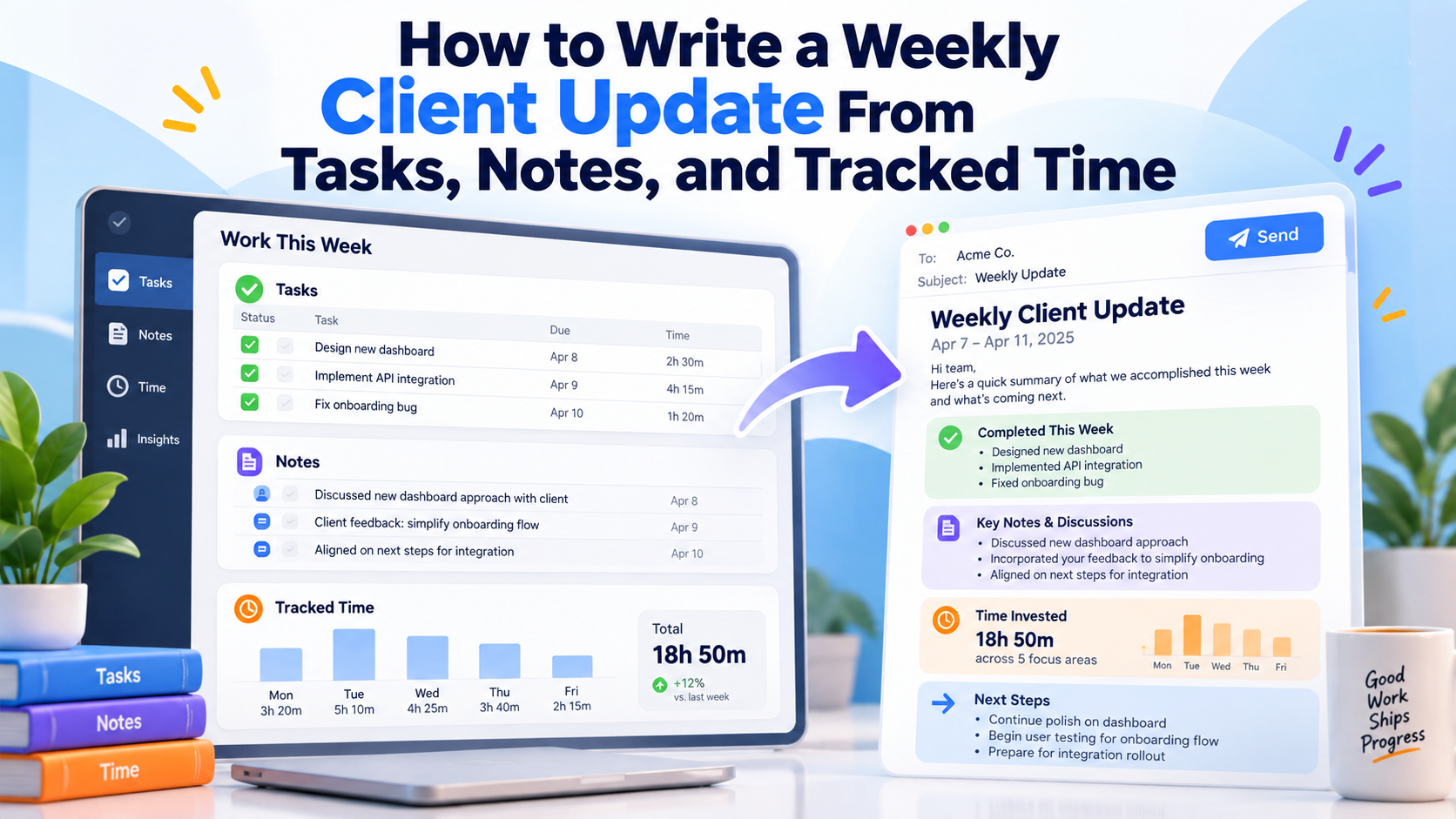
Writing a weekly client update should be easy.
You already did the work.
The problem is remembering enough of the week on Friday to explain it clearly.
What was finished?
What changed?
What is still blocked?
What happens next?
How much time went into the project?
If that information lives across your memory, email, chat messages, notes, and a timer somewhere else, writing the update becomes a small research project.
A better system is to build the update from the work record itself.
The basic workflow is:
Tasks → notes and comments → tracked time → AI draft → source check → client update
AI can make the writing faster.
But the important part is not asking AI to invent a polished status report.
It is giving AI a reliable record and then checking the draft against that record before sending anything.
Here is a complete example.
Everything in the example below is fictional. The client, project, tasks, time entries, comments, and resulting update are sample data created only to demonstrate the workflow.
The Fictional Client Project
Imagine Maya, a freelance web developer working with a fictional ecommerce client called Northfield Home.
This week's priorities were:
- Fix a mobile checkout issue
- Update the product-page image gallery
- Add new analytics events
- Prepare homepage revisions
- Investigate slow loading on collection pages
Instead of trying to remember the project at the end of the week, Maya records work as it happens.
By Friday, she has tasks, statuses, tracked time, and a few useful notes.
That becomes the source for the client update.
Step 1: Start With the Actual Work Record
Here is the fictional record for the week.
Monday
Fix mobile checkout issue
Status: Completed
Priority: High
Tracked time: 2h 10m
Comment:
Issue reproduced on Safari iOS. Appears related to the theme's cart script after the last update. Applied fix and completed test checkout successfully.
Verify checkout on desktop browsers
Status: Completed
Tracked time: 35m
Comment:
Tested Chrome, Safari and Firefox. No additional checkout issue found.
Tuesday
Update product-page gallery
Status: Completed
Tracked time: 1h 45m
Note:
Updated image behavior on desktop and mobile. Client asked to keep thumbnail navigation rather than switch to dots.
Replace outdated product images
Status: Completed
Tracked time: 40m
Wednesday
Add add_to_cart analytics event
Status: Completed
Tracked time: 55m
Add checkout-start event
Status: In progress
Tracked time: 45m
Comment:
Event added, but final validation is waiting for access to the client's analytics property.
Thursday
Homepage hero revisions
Status: Completed
Tracked time: 1h 20m
Comment:
Implemented revised headline, CTA and mobile spacing from Wednesday feedback.
Homepage testimonial section
Status: In progress
Tracked time: 35m
Comment:
Layout ready. Waiting for final testimonial copy from client.
Friday
Investigate collection-page performance
Status: In progress
Tracked time: 1h 30m
Note:
Main slowdown appears related to oversized product imagery and two third-party scripts. Need another profiling pass before recommending changes.
Weekly tracked time
Total fictional tracked project time:
10 hours 15 minutes
Now Maya has something much more useful than:
I think I did quite a lot this week.
She has evidence.
Step 2: Decide What the Client Actually Needs to Know
The client does not need every internal detail.
A useful weekly update usually needs four things:
Completed
What meaningfully moved forward?
In progress
What is actively being worked on?
Blockers or decisions needed
Is anything waiting on the client or another dependency?
Next steps
What should the client expect next?
Tracked time can also be included when relevant to the relationship.
If the client is billed hourly, it may matter.
If this is a fixed-price project, the exact number may be unnecessary unless the client expects time reporting.
The goal is not to dump your task manager into an email.
The goal is to translate the work record into the information the client needs.
Step 3: Ask AI for a First Draft
Because the underlying record already contains task statuses, notes, comments, and time, Maya can ask AI something specific.
For example:
Write a concise weekly client update for Northfield Home. Separate it into completed work, current blockers and next steps. Keep the tone professional and straightforward. Mention total tracked time, but do not include internal planning notes.
A possible AI response could look like this.
Fictional AI draft
Hi,
Here's this week's progress update for Northfield Home.
Completed this week
Resolved the mobile checkout issue and verified the checkout flow across major desktop browsers.
Updated the product-page image gallery for desktop and mobile and replaced outdated product images.
Added the new add-to-cart analytics event.
Completed the requested homepage hero revisions, including the new headline, CTA and mobile spacing.
In progress / blockers
Checkout-start analytics tracking has been implemented but still needs final validation once analytics-property access is available.
The homepage testimonial section layout is ready and is waiting for final testimonial copy.
Collection-page performance is being investigated. Initial testing points to oversized imagery and third-party scripts as the primary causes.
Next week
Validate checkout-start tracking.
Complete the testimonial section after receiving the final copy.
Continue collection-page performance testing and prepare optimization recommendations.
Total tracked time this week: 10h 15m.
Thanks, Maya
That is already close to something Maya could send.
But she should not send it yet.
Step 4: Check Every Claim Against the Source
This step matters more than improving the wording.
Go sentence by sentence.
Claim 1
Resolved the mobile checkout issue.
Supported?
Yes.
The task is marked completed and the comment says the fix was applied and successfully tested.
Claim 2
Verified the checkout flow across major desktop browsers.
Supported?
Mostly.
The record specifically says Chrome, Safari and Firefox.
"Major desktop browsers" is a reasonable summary, but being more precise would be better.
Change it to:
Verified checkout in Chrome, Safari and Firefox.
Claim 3
Added the new add-to-cart analytics event.
Supported?
Yes.
Completed.
Claim 4
Checkout-start analytics tracking has been implemented but still needs final validation once analytics-property access is available.
Supported?
Yes.
This is particularly important because the AI correctly distinguishes:
implemented
from:
fully validated
The client should not be told it is finished.
Claim 5
Collection-page performance testing points to oversized imagery and third-party scripts as the primary causes.
Supported?
Not quite.
The original note says:
Main slowdown appears related to oversized product imagery and two third-party scripts.
and:
Need another profiling pass before recommending changes.
Calling them the primary causes is stronger than the evidence supports.
A safer version is:
Initial investigation suggests oversized imagery and two third-party scripts may be contributing to the slowdown. I am doing another profiling pass before recommending changes.
This is exactly why AI-generated client communication should be checked.
The draft can make cautious internal notes sound more certain than they really are.
Step 5: Check What the AI Left Out
Fact-checking also means looking for omissions.
The weekly record shows that the client specifically chose to keep thumbnail navigation on the product gallery.
Does that decision belong in the update?
Maybe.
If the client remembers making the decision and only needs progress, probably not.
But if several people on the client side read the weekly update, noting the decision could prevent confusion later.
Maya could add:
The updated gallery keeps thumbnail navigation as agreed.
That turns the update into a lightweight record of an important client decision.
Step 6: Remove Internal Information the Client Does Not Need
Your task system may contain context that is useful to you but inappropriate for the client.
For example:
This took way longer than it should have.
Client changed their mind again.
Need to raise price next time.
Waiting because their analytics access is a mess.
This third-party app is terrible.
Those may be perfectly legitimate private notes.
They should not automatically appear in external communication.
If AI has access to notes and comments, tell it what audience it is writing for.
A good prompt might say:
Write this for the client. Include factual project progress and blockers, but exclude internal opinions, private planning notes and anything unrelated to their project.
AI still needs human review afterward.
Step 7: Separate a Blocker From Blame
The analytics task is blocked because Maya needs access from the client.
There are several ways to write that.
Bad:
Analytics is delayed because you still haven't provided access.
Technically, that might be true.
But it turns a status update into an accusation.
Better:
Checkout-start tracking is implemented and ready for final validation once analytics-property access is available.
This communicates:
- What has already been done
- What remains
- What is needed
without unnecessary friction.
A good client update documents blockers without using them to assign blame.
Step 8: Make Next Steps Concrete
Weak:
Continue working on the website next week.
Better:
Next week I will validate checkout-start tracking, finish the testimonial section once copy is available, and complete the collection-page performance investigation.
The client should be able to read the next-steps section and know what to expect.
That also creates useful accountability for the next update.
The Corrected Final Client Update
After checking the draft against the actual work record, Maya's final version might look like this:
Fictional final update
Hi,
Here's this week's progress update for Northfield Home.
Completed
Fixed the mobile checkout issue and successfully tested the updated flow.
Verified checkout in Chrome, Safari and Firefox.
Updated the product-page image gallery for desktop and mobile while keeping thumbnail navigation as agreed.
Replaced the outdated product imagery.
Added the new add-to-cart analytics event.
Completed the latest homepage hero revisions, including the updated headline, CTA and mobile spacing.
In progress / blockers
Checkout-start tracking is implemented and ready for final validation once analytics-property access is available.
The testimonial-section layout is ready and is waiting for the final testimonial copy.
I started investigating the collection-page performance issue. Initial testing suggests oversized images and two third-party scripts may be contributing to the slowdown. I am doing another profiling pass before recommending changes.
Next steps
Validate the checkout-start analytics event.
Complete the testimonial section after the copy is available.
Finish the collection-page performance investigation and provide optimization recommendations.
Tracked time this week: 10h 15m
Thanks, Maya
The final version is not dramatically different from the first AI draft.
That is good.
AI did most of the writing.
The human provided the judgment.
Why Tracked Time Improves the Update Even When You Do Not Include It
Suppose the client does not need to see the 10h 15m total.
Tracked time can still improve the update.
It tells Maya which work was substantial.
For example:
Collection-page performance - 1h 30m
is different from:
Reply to client email - 5m
A long task may deserve more explanation because it represented meaningful effort or investigation.
Time can also expose work that the task list alone makes look trivial.
Compare:
Investigated performance.
with:
Spent 1h 30m profiling the collection-page issue and narrowed the likely contributors before the next testing pass.
The second sentence gives useful context.
You do not need to report every hour.
But time helps determine what deserves explanation.
Read more: task manager time tracking vs a separate time tracker.
Statuses Prevent You From Accidentally Calling Work Finished
This is another reason structured task data matters.
Imagine the analytics task exists but has no status.
On Friday, Maya vaguely remembers working on it.
AI sees the task title:
Add checkout-start tracking.
Without reliable status information, it may be easier to describe that task too confidently.
But when the record says:
Status: In progress
and the comment says:
Waiting for final validation
the distinction becomes much harder to miss.
Good client updates begin with good work records.
Notes Explain Why the Task Changed
Task titles tell you what you intended to do.
Notes and comments tell you what actually happened.
For example:
Task: Update product gallery
does not explain why thumbnail navigation remained.
The comment does.
That becomes useful when writing an update that needs to include a decision rather than only a completion status.
For client-facing work, a short note at the moment something changes can save a surprising amount of reconstruction on Friday.
What Should Be Included in a Weekly Client Update?
For most projects, five sections are enough.
1. Short opening
One sentence is usually sufficient.
Here's this week's project update.
2. Completed work
Focus on meaningful outcomes rather than every checkbox.
3. In-progress work
Explain anything substantial that has started but is not yet complete.
4. Blockers or questions
Make it clear when progress depends on client input, another vendor, credentials, content, approval or some other dependency.
5. Next steps
Tell the client what they should expect next.
Tracked time can be a sixth section when it is relevant to the commercial relationship.
What Should Usually Stay Out?
A client update does not need to contain:
- Every minor task
- Internal frustration
- Private business notes
- Personal productivity commentary
- Unconfirmed conclusions
- Speculation presented as fact
- Irrelevant tracked time
- Technical detail that does not affect the client
- A giant dump of your task history
Transparency does not mean forwarding your internal operating system.
The purpose is clarity.
A Weekly Update Should Describe Outcomes, Not Activity
Compare:
Worked on checkout.
with:
Fixed the mobile checkout issue and verified the updated flow.
Compare:
Spent time on the homepage.
with:
Completed the revised homepage headline, CTA and mobile spacing.
Compare:
Did analytics work.
with:
Added the add-to-cart event; checkout-start tracking is implemented and waiting for final validation.
The client cares about what changed.
Your task system contains activity.
The update should translate activity into outcomes.
You Can Write the Update Manually From the Same Record
AI is optional.
The underlying method still works without it.
Open the week's work and answer:
What finished?
What is still open?
What is blocked?
What happens next?
Then verify the answer against your tasks and notes.
AI simply reduces the writing and summarization work.
It should not become the source of truth.
Your work record remains the source.
How SelfManager.ai Can Support the Workflow
SelfManager.ai stores work around dates.
Each date can contain tables with tasks, statuses, priorities, notes, comments, logs and tracked time.
At the end of the week, AI Review can inspect a selected period rather than requiring you to manually gather the week's information into a prompt.
Read more: AI task managers that write your weekly review.
For a client project, you can ask something like:
Summarize only the work related to Northfield Home this week. Separate completed work, open work, blockers and next steps.
Or:
Write a concise client update from this week's Northfield tasks, comments and tracked time. Do not include unrelated work or internal commentary.
After the first response, you can continue in the same review context.
For example:
Check the draft against the underlying tasks. Identify any statements that sound more certain than the recorded evidence.
Or:
Remove implementation details the client does not need.
Or:
Make the blocker section neutral and factual.
Or:
Rewrite this for a non-technical client.
That follow-up step can be more useful than the initial summary.
You Can Also Generate an Update From One Client Table
Not every project needs a full weekly AI Review.
If all relevant work lives inside one table, SelfManager's table chat can use that table directly as context.
That context can include:
- Task completion
- Statuses
- Priorities
- Tracked time
- Notes
- Comments when included
- Table activity logs
A prompt can be as simple as:
Write a four-line client update from this table.
For a small project, that may be all you need.
SelfManager Does Not Send the Update for You
The workflow described here produces text.
It does not imply that SelfManager automatically emails the client.
You still review the update and share it through the communication channel you normally use.
That might be:
- Slack
- Microsoft Teams
- A client portal
- Another project-management system
The final sending step remains separate.
That is useful because client communication deserves a human check before it leaves your hands.
This Is Not Automatic Invoicing Either
Tracked time can help explain the week and can be used as context when drafting a client or invoice summary.
But that is not the same thing as generating and sending a formal invoice.
If you need:
- Billable rates
- Invoice numbers
- Taxes
- Payment collection
- Accounting synchronization
- Formal timesheets
use appropriate invoicing or accounting software.
The workflow here is about communication.
Do not treat an AI-generated time summary as an accounting system.
The Client Does Not Need Access to Your Task Manager
You can use this process privately.
The client does not need their own SelfManager account just so you can send a weekly update.
Your internal work record can remain your operating system.
The output is a clean client-facing summary.
If you deliberately use collaboration features with a client or teammate, that is a separate workflow.
Make the Update Easier by Recording Small Notes During the Week
The best Friday update often depends on what you wrote Tuesday.
You do not need detailed journals.
A few useful comments are enough:
Client approved option B.
Waiting for analytics access.
Bug only affects Safari iOS.
Final copy still missing.
Performance issue appears image-related, needs more testing.
Those small notes preserve the reasoning that a completed checkbox cannot.
By Friday, the update is largely sitting there waiting to be summarized.
Read more: how to manage tasks for multiple clients.
A Five-Minute Friday Workflow
Once the work record is reliable, the process can be very short.
1. Review the client's tasks
Check completed and unfinished work.
2. Check comments and notes
Look for decisions, blockers and important context.
3. Check tracked time
Identify where substantial effort went and whether the total should be included.
4. Generate the draft
Ask AI for:
- Completed work
- Blockers
- Next steps
5. Verify it
Compare every important claim with the source record.
Especially check:
- Completion claims
- Dates
- Numbers
- Technical conclusions
- Client decisions
- Blockers
6. Edit for the client
Remove internal details and make the language appropriate for the audience.
7. Send through your normal communication channel
The AI draft is not the final step.
Approval is.
The Update Becomes Easier Every Week
The first weekly update may still take some effort.
Then the habit compounds.
If tasks are clearly named, statuses are accurate, time is tracked where useful, and important decisions are recorded when they happen, Friday stops being a reconstruction exercise.
You are no longer asking:
What did I do this week?
You are asking:
Which parts of this record does the client need to know?
That is a much easier problem.
Read more: how to use SelfManager.ai.
Try It With One Real Project
Choose one active client.
You do not need to reorganize your whole business.
For one week:
- Keep the client's tasks clearly named
- Update statuses honestly
- Track meaningful work
- Add short notes when decisions or blockers appear
At the end of the week, create the client update from that record.
Then compare the draft against the source before sending it.
The useful result is not merely saving a few minutes of writing.
It is being able to communicate progress without relying on Friday-afternoon memory.
SelfManager.ai currently offers a 7-day free trial with its AI features included and no credit card required, so one real working week is enough to test the process.
Frequently Asked Questions
What should a weekly client update include?
A useful update usually includes completed work, meaningful work still in progress, blockers or decisions needed, and next steps.
Tracked time can also be included if it matters to the client relationship.
How long should a weekly client update be?
Usually shorter than the underlying work record.
A client should be able to understand the state of the project quickly.
For many projects, a few bullets under Completed, Blockers and Next Steps are enough.
Can AI write a client update from task data?
Yes.
If the AI has access to reliable tasks, statuses, notes, comments and time information, it can turn that record into a first draft.
The draft should still be checked against the source before it is shared.
Why should I check an AI-generated client update?
AI can overstate uncertain findings, misunderstand ambiguous notes, omit important context, or turn an investigation into a completed result.
The task record should remain the source of truth.
Should I include tracked time in every client update?
No.
Include it when the client expects time reporting, when billing is hourly, or when the amount of effort provides useful project context.
For many fixed-price projects, completed work and next steps are more useful than an hour total.
Can SelfManager.ai generate a weekly client update?
Yes.
AI Review can use the work stored across a selected period, including tasks, statuses, tracked time, logs and optional comments, and you can ask follow-up questions within that context.
Table AI can also create a status update from one specific project table.
Does SelfManager.ai automatically email the update to the client?
No.
The workflow described here creates a draft that you review and then send using your normal communication tool.
Does SelfManager.ai automatically invoice the client from tracked time?
No.
Tracked time can provide context for summaries, but formal billing, invoicing, accounting, taxes and payment collection require appropriate specialist tools.
Date-based AI Task Manager
Plan smarter, execute faster, achieve more
Create tasks in seconds, generate AI-powered plans, and review progress with intelligent summaries. Perfect for individuals and teams who want to stay organized without complexity.
Get started with your preferred account