
How to Move From Todoist Without Losing Your Tasks
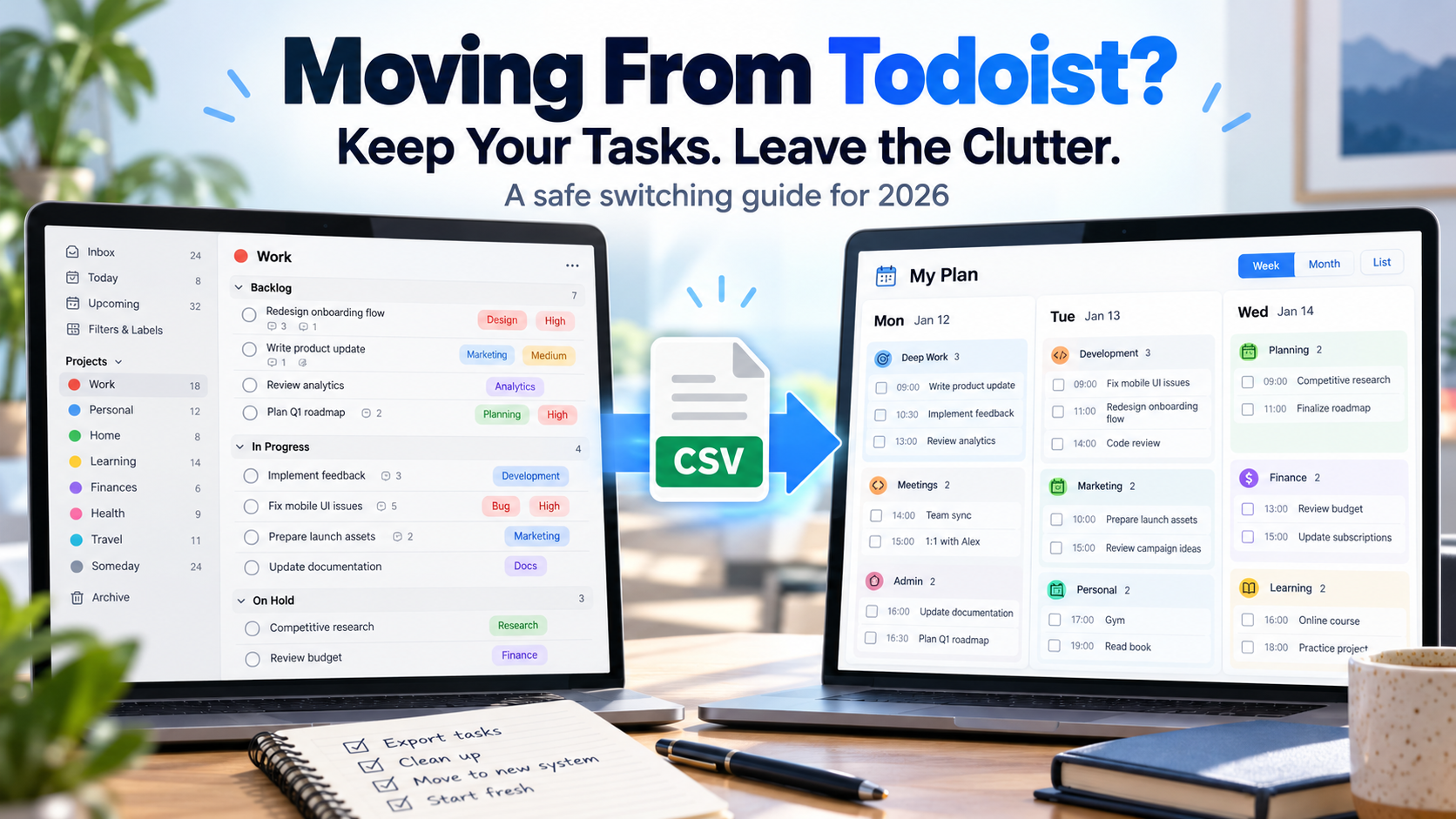
Moving away from Todoist does not require rebuilding your entire task system from memory.
The safest process is to export your Todoist data first, keep that archive untouched, move only the active work you still need, and run the old and new systems side by side briefly before deleting anything.
Todoist can export individual projects as CSV files. Paid users can also download account backups containing CSV files for active projects. Completed tasks require extra attention because they are not included in normal project CSV exports.
If you are moving to SelfManager.ai, there is currently no direct Todoist importer. The practical route is to export Todoist for safekeeping, then paste the tasks you still need into SelfManager and turn that text into dated task tables.
The Safest Way to Leave Todoist
Do not begin by deleting Todoist.
Begin by creating an archive.
A good migration has four stages:
- Export your Todoist data.
- Decide what actually needs to move.
- Import or recreate active work in the new system.
- Keep Todoist available until you know the migration worked.
This matters because switching task managers is not the same as copying a folder between computers.
Different tools organize work differently.
Read more: Todoist alternatives.
Todoist has:
- Projects
- Sections
- Tasks
- Subtasks
- Labels
- Priorities
- Due dates
- Deadlines
- Recurring dates
- Reminders
- Comments
- Attachments
- Filters
Another task manager may not have direct equivalents for all of them.
Trying to reproduce every Todoist field exactly can turn a simple switch into a database migration project.
The better question is:
What information do you actually need in the new system?
Read more: SelfManager.ai vs Todoist.
Step 1: Export Your Todoist Projects Before Changing Anything
Todoist allows users on Beginner, Pro and Business plans to export individual projects as CSV files.
On Todoist web, Windows or macOS:
- Open the project you want to export.
- Open the three-dot menu.
- Choose Manage data.
- Select Export as CSV.
- Save the file somewhere you will not accidentally delete it.
Repeat this for every project you care about.
Do not assume that because a task manager syncs to the cloud you no longer need a personal copy.
The export is your fallback.
Even if the migration goes perfectly, keeping the original files costs almost nothing and removes the pressure to get every detail right on the first attempt.
What Is Included in a Todoist CSV Export?
Todoist's project CSV export can preserve much more than just task names.
Depending on the task, the exported project can contain information such as:
- Active tasks
- Sections
- Project descriptions
- Task descriptions
- Dates and times
- Priorities
- Labels
- Comments
- Attachments
- Task duration
- Deadlines
- Recurring-date information
- Assignment information
That makes CSV useful both as a migration format and as an archive.
But there is one major limitation.
Normal Todoist CSV Exports Do Not Include Completed Tasks
This is the detail most likely to surprise someone who thinks:
"I exported the project, so everything must be there."
Todoist's standard project CSV export does not include completed tasks.
That means a project you have used for two years may export only the currently active work while leaving much of the historical record behind.
If your goal is simply:
"I want to move everything I still need to do"
that may be fine.
If your goal is:
"I want a record of everything I completed"
you need another export method before leaving.
Step 2: Export Completed Todoist Tasks Separately if History Matters
Todoist currently provides an Export to Google Sheets extension that can include both active and completed tasks.
This gives you a way to retain historical task records that are absent from the normal CSV project export.
Read more: task managers that preserve completed work.
The Google Sheets export can include information such as:
- Task
- Due date
- Priority
- Creation date
- Description
- Section
- Assignee
- Completed tasks
There is a tradeoff.
The Google Sheets export does not preserve every Todoist attribute.
For example, Todoist says this export excludes information including:
- Deadlines
- Comments
- Attachments
- Reminders
So there is no single export format that perfectly captures every part of a long-lived Todoist account.
If your data matters, use more than one.
A practical archive might contain:
Folder: Todoist Archive
- Active-project CSV files
- Google Sheets export containing completed work
- Todoist backup ZIP if available
- Important attachments saved separately when necessary
This is much safer than relying on one migration file.
Step 3: Paid Todoist Users Can Download a Full Active-Project Backup
Todoist Pro and Business accounts receive automatic backups.
Todoist currently creates backups on days when you log in and make changes, retaining up to 21 backup archives.
A downloaded backup is a ZIP containing CSV files for active projects.
The backup can preserve information including:
- Active projects
- Active tasks
- Dates and times
- Task duration
- Deadlines
- Recurring dates
- Comments
- Attachment links
But there are still limits.
Completed tasks are not included.
Archived projects are not included either.
So a Todoist backup is useful, but it should not be mistaken for a complete historical export of everything you have ever done inside Todoist.
If completed work matters to you, export that separately before closing the account.
What Usually Does Not Transfer Cleanly Between Task Managers?
This is where migrations become messy.
A CSV can contain a lot of information, but the destination app must have somewhere meaningful to put it.
For example, imagine this Todoist task:
Prepare Q4 client report
Project: Client A
Section: Reporting
Subtasks: 4
Label: @deep_work
Priority: P1
Due: Friday
Reminder: Friday 9:00 AM
Comment thread: 6 messages
Attachment: spreadsheet
Recurring rule: none
A different productivity app might not support Todoist-style:
- Labels
- Nested subtasks
- Sections
- Reminders
- Comments
- Attachments
- Priorities
- Recurrence
- Project hierarchy
Even if it imports the task title successfully, that does not mean the entire task transferred.
Before migrating hundreds of tasks, test ten.
Pick tasks containing different features and see what survives.
That small test can save hours of cleanup.
Do Not Automatically Move Every Old Todoist Task
A migration is also an opportunity to clean the system.
If Todoist contains 800 active tasks, copying all 800 into another application may simply recreate the same backlog somewhere new.
Before moving anything, divide your tasks into three categories.
Move now
Tasks you realistically expect to work on during the next few weeks.
Archive
Tasks and completed work you want to retain for reference but do not need inside your new active system.
Delete or leave behind
Old ideas, stale someday tasks, abandoned projects and obligations that are no longer real.
Many people switch productivity tools because the existing system has become noisy.
Do not bring all the noise with you.
A Simple Todoist Migration Checklist
Before you leave Todoist, confirm that you have handled:
- Active projects
- Active tasks
- Important subtasks
- Important comments
- Required attachments
- Upcoming deadlines
- Recurring tasks
- Important reminders
- Shared projects
- Completed-task history
- Archived projects you still care about
You may not need all of them.
The important thing is making that decision intentionally rather than discovering six months later that something disappeared.
Be Extra Careful With Recurring Tasks
Recurring tasks are one of the harder things to move between systems because applications represent recurrence differently.
Todoist also documents an export limitation involving recurring dates.
The start date of a recurring schedule is not preserved in a standard project CSV export.
For example, something conceptually similar to:
every year starting January 31
can lose the original starting-date information during export.
If you rely heavily on recurring tasks, review them manually before completing the switch.
Make a small list of the important recurring routines and recreate them deliberately in the destination app.
That is safer than assuming every recurrence expression will translate perfectly.
Should You Delete Your Todoist Account After Exporting?
Not immediately.
There is little advantage to deleting the account on migration day.
Instead:
- Export everything important.
- Set up the new task manager.
- Move active work.
- Use the new system for several days.
- Check Todoist whenever you suspect something is missing.
- Only consider deleting the account when you are confident you no longer need it.
Todoist account deletion is permanent.
There is no prize for deleting the old system quickly.
Treat Todoist as a temporary read-only archive while you transition.
How to Move From Todoist to SelfManager.ai
SelfManager.ai does not currently provide a direct Todoist CSV importer.
That is important to state clearly.
You cannot upload a Todoist export and expect SelfManager to automatically recreate:
- Projects
- Sections
- Labels
- Subtasks
- Reminders
- Recurring rules
- Comments
- Attachments
The two systems also use fundamentally different organizational models.
Todoist starts largely from projects and tasks.
SelfManager starts from dates and tables.
So a one-to-one import would not necessarily produce a good SelfManager workspace anyway.
The practical migration is simpler.
Step 1: Export Todoist First
Keep the original Todoist CSV files even if you do not intend to import them directly.
They become your source archive.
If something appears missing later, you can search those exports rather than depending on memory.
Step 2: Decide What You Actually Need to Bring Forward
Do not begin with your entire Todoist account.
Start with current work.
For example:
Client A
- Finish homepage revisions
- Send invoice
- Review analytics
SelfManager.ai
- Fix notification bug
- Write onboarding copy
- Test mobile navigation
Personal
- Renew insurance
- Book dentist
- Buy gym supplements
This is already enough information to begin the migration.
Step 3: Paste the Tasks Into SelfManager
SelfManager has a feature called Turn Any Text into a To-Do List.
You can paste:
- A plain list
- Notes
- An email
- Meeting notes
- A project brief
- A brain dump
- Text copied from your Todoist export
The feature can turn the text into structured task rows.
There is also a Structure as-is mode.
That is particularly useful during migration because it is designed to preserve an existing list rather than creatively rewrite it into a different plan.
If you already cleaned the task names before pasting them, use that approach.
The goal is migration, not having AI reinterpret every task you wrote.
Step 4: Organize the Migrated Tasks Around Dates
This is where the switch becomes more than copying tasks.
Suppose Todoist contains:
Website Redesign
- Finish homepage
- Update pricing
- Test contact form
- Optimize images
- Publish
- Check analytics
Instead of recreating one identical project structure, you might distribute the work in SelfManager like this:
Monday - Website Redesign
- Finish homepage
- Update pricing
Tuesday - Website Redesign
- Test contact form
- Optimize images
Wednesday - Website Redesign
- Publish
- Check analytics
The project can also remain accessible through a Pinned Table when it needs to persist across dates.
The point is not to reproduce Todoist perfectly.
The point is to translate your existing obligations into the planning model of the new tool.
What Happens to Todoist Labels?
SelfManager currently does not support tags or Todoist-style labels.
So labels such as:
- @deep_work
- @waiting
- @office
will not automatically become corresponding SelfManager fields.
Before migrating, decide whether the label represents information you still need.
For example:
@deep_work
may no longer need to exist as a label if you put those tasks into a dedicated Deep Work table.
@waiting
might be represented with a task status.
The exact translation depends on why you used the label in Todoist.
Do not reproduce structure merely because it existed before.
What Happens to Todoist Subtasks?
SelfManager does not currently have true nested subtasks.
If you have:
Launch website
- Finalize copy
- Compress images
- Test mobile
- Configure analytics
- Publish
the simplest SelfManager migration is usually to make each step its own task inside the same table.
You lose the parent-child hierarchy, but the individual actions remain available.
If hierarchical subtasks are central to how you work, SelfManager may not be the right Todoist replacement.
That is a genuine reason to stay with Todoist or choose another alternative.
What Happens to Todoist Calendar Integration?
SelfManager currently has no Google Calendar, Outlook Calendar or CalDAV integration.
If you use Todoist as part of a calendar-based time-blocking workflow, understand this before switching.
SelfManager can organize work by dates, but it does not automatically know what is happening inside your external calendar.
It also does not automatically time-block or reschedule unfinished tasks.
If calendar synchronization is essential, choose a destination that supports it.
What You Gain by Moving to a Date-Centric System
The reason to move from Todoist to SelfManager is not that SelfManager has every Todoist feature.
It does not.
The value comes from changing the workflow.
Todoist is excellent at maintaining a flexible task database.
SelfManager emphasizes the life cycle around the task:
When did I intend to do this?
What else was I doing that day?
How long did it actually take?
What remained unfinished?
What did the whole week look like?
What should I change next week?
Because completed work remains connected to its original dated tables, your task manager becomes a work history rather than only a backlog.
Read more: managing many small tasks across work and personal life.
AI Plan Can Help After the Migration
Once your active Todoist tasks are inside SelfManager, you do not have to schedule every remaining item manually.
AI Plan can work across:
- One day
- A week
- A month
- A custom period up to 31 days
You can provide the work you need to accomplish and ask AI to propose dated tables and tasks.
The result remains editable before you approve it.
Read more: using AI to plan your existing tasks.
That makes AI Plan particularly useful during a migration.
Instead of copying a 60-task Todoist backlog and leaving it as another giant backlog, you can decide which work matters and build a realistic plan for the coming days.
The Best Migration Is Not a Perfect Copy
People often approach productivity migrations as if success means:
Old system = new system exactly.
That is rarely the right goal.
If the old structure worked perfectly, you probably would not be leaving.
A better migration preserves:
- Important work
- Important context
- Important history
while allowing the new system to organize that information according to its own strengths.
If you move from Todoist to SelfManager, that means accepting some deliberate differences.
You lose things such as:
- Subtasks
- Labels
- Advanced filters
- Calendar synchronization
- Native mobile apps
- The large Todoist integration ecosystem
You gain a stronger focus on:
- Dates as workspaces
- Multiple areas of work inside one day
- Actual task time tracking
- AI-generated multi-day planning
- AI Review
- Historical daily context
That tradeoff should be the reason for the switch.
A Low-Risk 7-Day Switching Plan
If you have used Todoist for years, do not migrate everything in one evening.
Try this instead.
Day 1 - Archive Todoist
Export your important projects.
Export completed work if you need it.
Download a backup if your plan provides one.
Do not delete anything.
Day 2 - Move only this week's work
Take the tasks you realistically expect to work on over the next seven days.
Put those into the new system.
Ignore the distant backlog for now.
Days 3-6 - Work only from the new system
When you discover something missing, check Todoist.
Then decide whether it genuinely belongs in your new workflow.
Day 7 - Review
Ask:
- Did I miss important tasks?
- Did I miss Todoist's labels?
- Did I need subtasks?
- Did I miss calendar synchronization?
- Was the new planning structure easier?
- Did I actually use the new features I switched for?
Only after answering those questions should you move the remaining active projects.
This turns a risky account migration into a reversible experiment.
Final Take
Leaving Todoist safely is mostly about resisting the urge to move too quickly.
Export first.
Preserve completed work separately if history matters.
Do not assume a CSV contains everything.
Keep Todoist available while you test the replacement.
And do not automatically transfer years of stale tasks into a new productivity system.
If you move to another traditional task manager, Todoist's CSV export may serve as a fairly direct migration source.
If you move to SelfManager.ai, the transition is intentionally less direct because the organizational model changes.
There is no native Todoist importer today.
The practical approach is:
Export Todoist for safekeeping.
Choose the active work worth carrying forward.
Paste that work into SelfManager and turn it into tasks.
Organize those tasks around the days when you intend to do them.
You keep the original archive.
You avoid dragging an entire stale backlog into the new system.
And you use the switch as an opportunity to build the task system around how you want to work now rather than how your old app happened to store it.
FAQ
How do I export my tasks from Todoist?
Open a Todoist project on the web, Windows or macOS, open the three-dot menu, choose Manage data, then select Export as CSV. Repeat the process for each project you want to preserve.
Does Todoist CSV export include completed tasks?
No. Standard Todoist project CSV exports do not include completed tasks. If you need completed-task history, Todoist's Export to Google Sheets extension can include completed tasks, although it does not preserve every attribute such as comments, attachments, reminders and deadlines.
Can I export my entire Todoist account at once?
Todoist Pro and Business users can download automatic backup ZIP files containing CSV exports of their active projects. These backups do not include completed tasks or archived projects, so they should not be treated as a complete historical account export.
Can I import Todoist directly into SelfManager.ai?
SelfManager.ai does not currently provide a direct Todoist importer. The safest workflow is to archive Todoist separately, select the active tasks you want to move, and paste the task text into SelfManager's Turn Any Text into a To-Do List feature.
Will Todoist labels transfer to SelfManager.ai?
No. SelfManager currently does not have Todoist-style labels or tags, so labels will not map directly. Decide whether the information represented by each label should become a table, status, date or another part of your new structure.
Will Todoist subtasks transfer to SelfManager.ai?
Not as nested subtasks. SelfManager does not currently support true subtasks. The individual steps can instead become separate task rows inside the same table.
Should I delete Todoist after switching?
There is no reason to delete it immediately. Keep the old account available while you use the new system and verify that you did not miss important projects, history or recurring work. Todoist account deletion is permanent.
What is the safest way to switch task managers?
Export your data first, migrate a small test set, check what metadata survives, move your current work, and keep the old system temporarily as a read-only reference. Only complete the migration after you have successfully used the new system for real work.
Date-based AI Task Manager
Plan smarter, execute faster, achieve more
Create tasks in seconds, generate AI-powered plans, and review progress with intelligent summaries. Perfect for individuals and teams who want to stay organized without complexity.
Get started with your preferred account