
How to Turn Client Emails Into Tasks With AI
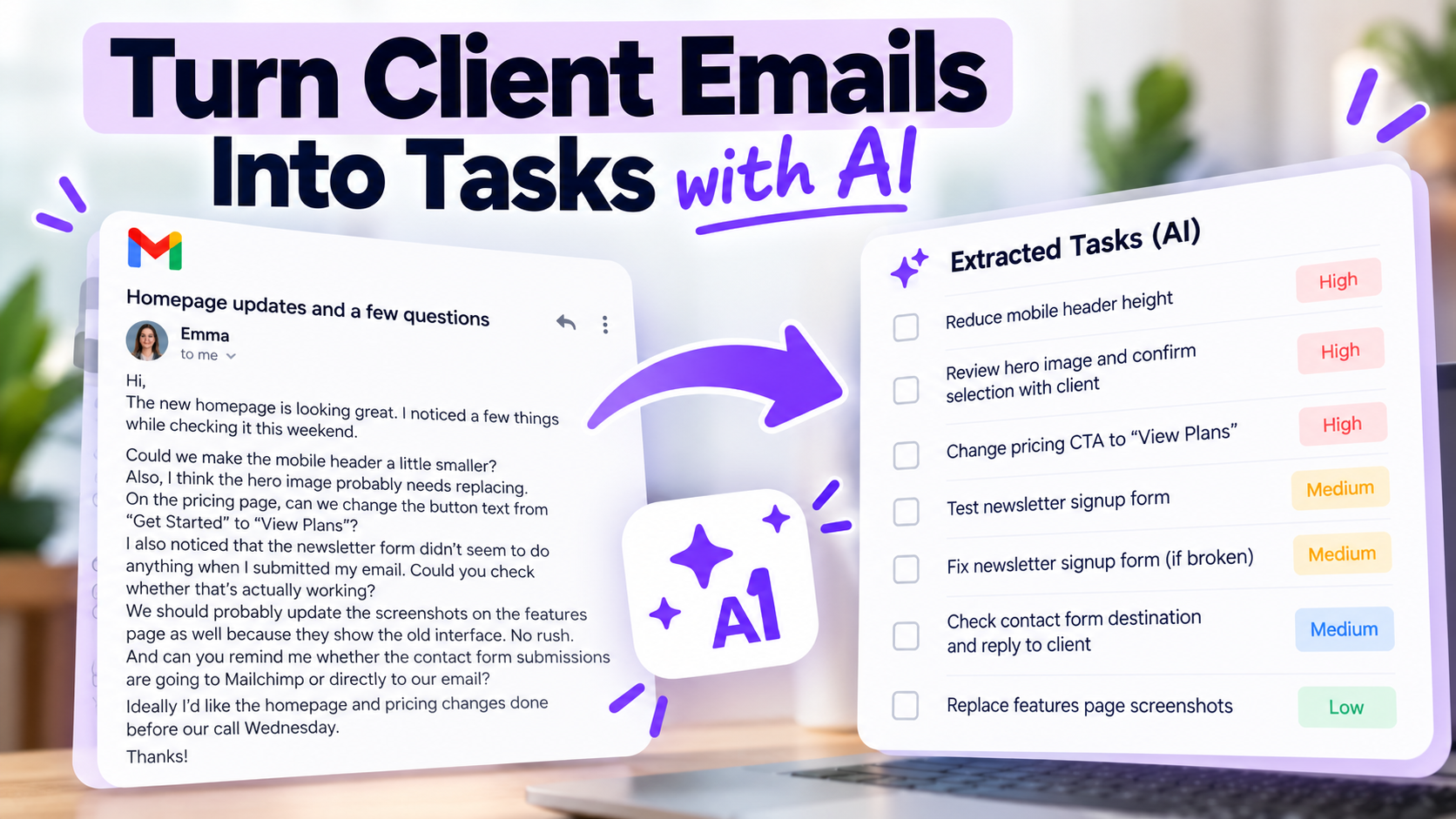
Client emails often contain more work than they appear to.
A message that looks like one request may actually contain:
- Three changes
- A question you need to answer
- Something you are waiting on
- A vague suggestion
- A hidden deadline
- And one request that should not become a task at all
You can manually reread the email and create every task yourself.
Or you can let AI extract the possible actions first, then check what it understood before putting anything into your task system.
That distinction matters.
AI is useful for finding and structuring action items. It should not silently decide what a client meant when the email itself is ambiguous.
A practical workflow looks like this:
Client email → AI task extraction → check assumptions → clarify ambiguity → organize tasks → save to the right date
Here is a complete example.
The client, company, email, tasks, and output below are fictional and exist only to demonstrate the workflow.
The Fictional Client Email
Imagine you are a freelance web developer working with a client named Emma at a fictional company called Northfield Coffee.
On Monday morning, she sends:
Hi,
The new homepage is looking great. I noticed a few things while checking it this weekend.
Could we make the mobile header a little smaller? It takes up quite a lot of space on my phone.
Also, I think the hero image probably needs replacing. Maybe use the second image from the folder I sent last week, although I'm not completely sure yet.
On the pricing page, can we change the button text from “Get Started” to “View Plans”?
I also noticed that the newsletter form didn't seem to do anything when I submitted my email. Could you check whether that's actually working?
We should probably update the screenshots on the features page as well because they show the old interface. No rush on that one.
And can you remind me whether the contact form submissions are going to Mailchimp or directly to our email?
Ideally I'd like the homepage and pricing changes done before our call Wednesday.
Thanks!
This is not an unusually complicated email.
But it contains several different types of information.
There are definite requests.
There are possible requests.
There is troubleshooting.
There is a question.
There is a soft deadline.
And one item explicitly has lower urgency.
If you leave the message sitting in your inbox, you now have to remember all of that every time you think about this client.
Step 1: Give the Original Email to AI
In SelfManager.ai, you can use the Turn any text into a to-do list feature.
See all SelfManager AI features.
The source does not have to look like a task list.
It can be:
- A client email
- Meeting notes
- A Slack conversation
- A transcript
- A project brief
- A brain dump
For this example, we paste Emma's email as written.
There is no need to rewrite it into tidy bullet points first.
That is the work we want AI to help with.
Read more: how to turn a brain dump into a daily plan with AI.
Step 2: Let AI Extract the Possible Actions
A reasonable first output could be:
Fictional AI-generated tasks
- Reduce mobile header height
- Replace homepage hero image with second image from client's folder
- Change pricing page CTA from “Get Started” to “View Plans”
- Test newsletter signup form
- Fix newsletter signup form if broken
- Update screenshots on features page
- Confirm where contact form submissions are being sent
This is already much easier to scan than the original email.
But it should not be accepted blindly.
There are several problems.
Step 3: Find What the AI Assumed
The most obvious issue is task number two:
Replace homepage hero image with second image from client's folder.
That is not actually what the client approved.
Emma wrote:
Maybe use the second image from the folder I sent last week, although I'm not completely sure yet.
The confirmed task is not:
Replace the image.
It is closer to:
Review alternative homepage hero image and confirm selection with Emma.
That sounds like a small distinction.
It is not.
If you treat uncertain client language as final approval, AI can make you very efficient at doing the wrong work.
Step 4: Separate Investigation From Implementation
The newsletter request contains another important distinction.
Emma said:
The newsletter form didn't seem to do anything when I submitted my email. Could you check whether that's actually working?
That does not yet mean:
Fix the newsletter form.
You do not know that it is broken.
The correct first task is:
Test newsletter signup flow and confirm whether submissions are working.
Only after investigation might another task become necessary:
Fix newsletter signup issue.
This is a useful general rule for converting client messages into tasks.
Do not turn:
Can you check this?
into:
Fix this.
Checking and fixing are different actions.
Step 5: Separate Questions From Implementation Work
The email also asks:
Can you remind me whether the contact form submissions are going to Mailchimp or directly to our email?
That is not necessarily development work.
It may simply require checking the existing configuration and replying.
A clearer task is:
Check current contact-form destination and reply to Emma.
Again, the wording matters.
Compare:
Contact form integration
with:
Check whether contact form submissions go to Mailchimp or email and reply to Emma.
The second task tells future-you exactly what needs to happen.
Step 6: Identify the Real Deadline
The client writes:
Ideally I'd like the homepage and pricing changes done before our call Wednesday.
This gives you useful scheduling information.
But the deadline does not necessarily apply to every request in the email.
Before Wednesday:
- Mobile header adjustment
- Pricing button change
- Homepage hero decision, if approved
Not necessarily before Wednesday:
- Features-page screenshot replacement
Emma explicitly said:
No rush on that one.
AI may notice both pieces of language.
You still need to ensure the resulting plan preserves the distinction.
Step 7: Create the Corrected Task List
After reviewing the email, the working list might become:
Homepage - before Wednesday call
1. Reduce mobile header height
Confirmed client request.
Priority: High
2. Review second hero image and confirm selection with Emma
Do not replace yet because approval is unclear.
Priority: High
Pricing - before Wednesday call
3. Change pricing CTA from “Get Started” to “View Plans”
Clear implementation request.
Priority: High
Newsletter
4. Test newsletter signup flow
Determine whether submissions are actually failing.
Priority: Medium
5. Fix newsletter signup only if testing confirms a problem
Conditional task. This may not be needed.
Priority: Medium
Contact form
6. Check where contact form submissions currently go and reply to Emma
Answer the client's question.
Priority: Medium
Features page
7. Replace outdated interface screenshots
Explicitly described as non-urgent.
Priority: Low
Now the email has become a much safer working plan.
What Changed Between the AI Output and the Final Tasks?
This is the important part of the workflow.
The AI did most of the tedious extraction.
The human corrected meaning.
| Email language | Risky interpretation | Better task |
|---|---|---|
| “Maybe use the second image” | Replace hero image | Review image and confirm with client |
| “Could you check whether that's working?” | Fix newsletter | Test newsletter first |
| “Can you remind me whether...” | Modify contact form | Check configuration and reply |
| “No rush on that one” | Do with other changes | Keep as lower priority |
| “Before our call Wednesday” | Apply deadline to everything | Apply deadline only to relevant changes |
This is why the useful goal is not:
AI reads email so I don't have to.
It is:
AI does the first organizational pass so I can spend my attention checking meaning instead of manually rewriting everything.
Why Vague Client Language Deserves Extra Attention
Clients do not normally write emails as technical specifications.
They say things like:
Could we maybe...
I think this should...
Can you have a look...
Perhaps we should...
Is it possible to...
Those phrases can represent very different levels of commitment.
“Can you check this?”
Usually means investigate.
“Please change this.”
Usually means implementation is approved.
“Maybe we could...”
May be an idea rather than a confirmed task.
“What do you think about...”
May require advice before any implementation.
“Can we do this by Friday?”
Could be a request for feasibility rather than an accepted deadline.
An AI model can help classify those statements.
But when money, scope, deadlines, or client approval are involved, you should still make the final interpretation.
AI Should Not Expand the Project Scope for You
Imagine another sentence:
It would also be nice if users could eventually save their favorite products.
AI could easily transform that into:
Add favorite-products functionality.
That would be dangerous.
The client may simply be expressing an idea.
A proper next action might be:
Add favorite-products idea to future discussion.
Or:
Ask client whether favorite-products functionality should be scoped separately.
There is a large difference between capturing an idea and committing to build it.
This matters especially for freelancers and agencies.
If every suggestion becomes a task, your task manager can quietly turn casual conversations into unpaid scope.
Ask Clarifying Questions When the Email Does Not Contain Enough Information
Some ambiguity cannot be solved by better task wording.
You genuinely need the client.
Imagine Emma wrote:
Can we make the mobile version feel more premium?
AI can invent possible actions:
- Increase whitespace
- Change typography
- Modify button styling
- Replace imagery
But none of those is necessarily what Emma means.
The better task may simply be:
Ask Emma what feels insufficiently premium on mobile and request examples.
AI should reduce ambiguity where possible.
It should not hide ambiguity by creating confident-looking tasks.
Put Tasks on the Date Where You Will Actually Work on Them
Once the email has been turned into clean actions, the next problem is scheduling.
Not everything belongs today.
Suppose Monday is already busy.
You might organize the work like this:
Monday
- Test newsletter signup flow
- Check contact form destination
- Review second hero image
These tasks help clarify the situation.
Tuesday
- Reduce mobile header height
- Change pricing CTA
- Implement newsletter fix if required
- Apply confirmed hero image change
Friday
- Replace outdated screenshots on features page
Now the original client email has become work distributed across appropriate dates.
The inbox no longer has to function as your task manager.
Why Keeping the Original Email Still Matters
Turning an email into tasks does not mean you should delete or ignore the original message.
The email remains the source.
The tasks are your operational interpretation of it.
That distinction becomes useful when there is disagreement later.
Suppose you remember:
Emma definitely approved the second hero image.
But the original email says:
Maybe use the second image... although I'm not completely sure yet.
The source wins.
Tasks should help you execute the communication.
They should not replace the evidence of what was actually communicated.
This Is Not an Email Integration
There is an important limitation to the workflow described here.
SelfManager.ai does not currently provide a native Gmail or Outlook integration that automatically reads your inbox and creates tasks from incoming messages.
You copy the relevant email text into SelfManager yourself.
Then AI can extract the work.
That means SelfManager is useful when your problem is:
I have an important client message and want to convert it into structured work quickly.
It is not currently the right solution if your requirement is:
Automatically monitor my inbox and turn every incoming email into tasks without me touching anything.
Those are different capabilities.
Being clear about that prevents a trial from starting with the wrong expectation.
Why Manual Selection Can Sometimes Be Useful
An automatic email-to-task pipeline sounds attractive.
But most emails should not become tasks.
Your inbox contains:
- FYIs
- Newsletters
- Automatic notifications
- Conversations
- Approvals
- Questions
- Ideas
- Receipts
- Actual work requests
If everything automatically enters the task manager, you have created a second inbox.
Manual selection introduces a useful decision:
Does this message actually require action from me?
Once the answer is yes, AI can remove much of the tedious restructuring.
What if the Email Contains 15 Requests?
This is where AI extraction becomes particularly useful.
Long client emails often combine:
- Feedback from several people
- Multiple pages
- Bugs
- Design changes
- Questions
- New ideas
- Existing scope
- Future scope
Manually processing those messages requires careful rereading.
AI can perform the first pass and expose the potential work as individual rows.
Then you can inspect the tasks one by one.
For a complex email, you might also group the result:
Homepage
- Update hero headline
- Test mobile spacing
- Confirm image choice
Product pages
- Replace outdated screenshots
- Fix variant selector issue
Analytics
- Verify checkout event
- Confirm newsletter conversion tracking
Questions for client
- Confirm hero image
- Request missing product copy
- Clarify launch date
The client sent one email.
You now have four understandable work groups.
Read more: how to manage tasks for multiple clients.
Use Priorities After Extraction, Not Before
The fact that a request appears first in an email does not automatically make it the highest priority.
Similarly, the longest paragraph may not represent the most important work.
Once AI extracts the actions, ask:
- Is something broken?
- Is there a hard deadline?
- Is another task blocked by this?
- Is the client waiting for an answer?
- Can this safely happen later?
- Is this even approved work yet?
Then set priorities.
AI can suggest priorities, but the context of the client relationship still matters.
Keep the Client's Wording When Precision Matters
AI generally improves task names by making them concise.
That is useful most of the time.
But sometimes exact client language matters.
Suppose the client says:
Change the button to “View Plans”.
Do not let summarization turn that into:
Improve pricing CTA.
Those are not equivalent.
The client's exact requested wording is actionable information.
Likewise:
Reduce mobile header height slightly.
should not become:
Redesign mobile navigation.
Good task generation removes noise without changing scope.
Add Context That Will Help When You Return Later
After generating the tasks, you can store additional context in the table or related comments and notes.
For example:
Client wants homepage + pricing updates before Wednesday call. Hero image is not confirmed. Features screenshots are explicitly non-urgent.
That short note preserves the overall logic of the email.
Two days later you do not have to reconstruct which tasks belonged together.
Two months later the work still makes sense.
Client Email Processing Can Become a Simple Routine
You do not need AI for every email.
Most professionals can develop a very lightweight rule.
If the email needs only a reply
Reply.
Do not create unnecessary tasks.
If it contains one obvious action
Create the task directly.
Using AI may take longer than typing it.
If it contains several requests
Paste it into task generation and let AI separate them.
If it contains ambiguous work
Use AI to expose the possible actions, then clarify before committing.
If it contains future ideas
Capture those separately from approved work.
This prevents the task system from becoming a copy of your inbox.
A Useful Checklist Before Approving AI-Generated Client Tasks
Before accepting the output, check seven things.
1. Did AI capture every explicit request?
Compare the generated tasks with the original email.
2. Did AI invent any work?
Remove anything that the client did not actually request.
3. Did an idea become an approved task?
Change it back to an idea or clarification step.
4. Did investigation become implementation?
Separate “check” from “fix.”
5. Are any tasks blocked?
Record the dependency instead of pretending the task can proceed.
6. Did AI assign urgency incorrectly?
Apply the real deadline and client context.
7. Is the wording specific enough?
Future-you should know exactly what the task means.
That review usually takes much less effort than manually constructing the task list from scratch.
What Happens After the Tasks Are Created?
This is where using AI inside the task manager rather than only inside a chatbot becomes useful.
The generated actions are no longer just an AI response.
They become normal tasks.
You can:
- Edit them
- Prioritize them
- Change statuses
- Track time
- Add deadlines
- Add comments
- Keep notes beside the work
- Complete them
- Review them later
And because SelfManager.ai is date-centric, the work can live on the dates where it actually happens.
Later, those tasks can also become part of AI Review.
So a request that began as an email can eventually contribute to questions such as:
What did I complete for this client this week?
What client work is still unfinished?
How much time did I spend on this project?
What should carry into next week?
The email becomes structured work, and the work becomes history.
The Inbox Should Not Be Your Task Manager
Many people accidentally manage work by email state.
Unread means:
I need to do something.
Starred means:
This is important.
Marked unread again means:
Please remind future-me.
That system works until the inbox becomes busy.
Communication and task management are related, but they are not the same thing.
An email tells you what someone communicated.
A task system tells you what you decided to do about it.
AI can make the transition between those two much faster.
But the decision still matters.
Read more: AI task management for overwhelmed knowledge workers.
Try It With One Real Client Request
Do not start by processing your entire inbox.
Choose one genuine client email that contains several requests.
Copy the relevant message into SelfManager.ai and generate the task list.
Then compare the output against the original.
Try to find:
- One assumption
- One ambiguity
- One item that should be lower priority
- One task that could be worded more precisely
Correct those before you start working.
If the resulting tasks are easier to execute than repeatedly reopening the client email, the workflow has done something useful.
SelfManager.ai currently offers a 7-day free trial with its AI features available and no credit card required.
The goal is not to automate your relationship with the client.
It is to spend less attention translating communication into work.
Frequently Asked Questions
Can AI turn a client email into tasks?
Yes.
AI can extract requests, questions, deadlines, and potential action items from email text and turn them into structured tasks.
The result should still be checked because ambiguous language can be interpreted incorrectly.
Does SelfManager.ai connect directly to Gmail?
No.
The workflow described here requires you to copy relevant email text into SelfManager.ai.
It should not be confused with a native Gmail integration or automatic inbox monitoring.
Can SelfManager.ai connect directly to Outlook email?
Not currently as part of this workflow.
You can copy the relevant content from an Outlook message and use AI to extract tasks, but that is different from a native Outlook integration.
Should every client request become a task?
No.
Some messages require only a reply.
Others contain ideas, questions, FYIs, or suggestions that have not been approved.
The task list should represent actions you have actually decided to take.
Should AI decide task priorities from the email?
AI can suggest priorities, but you should review them.
It may not know the client's commercial importance, a changed deadline, work already in progress, or other context outside the message.
What should I do when a client request is ambiguous?
Create a clarification task rather than guessing.
For example, replace:
“Redesign mobile homepage”
with:
“Ask client which parts of the mobile homepage feel outdated.”
Once the requirement is clear, create the implementation task.
What types of text can SelfManager.ai turn into tasks?
The current task-generation feature accepts arbitrary text, including client emails, meeting transcripts, brain dumps, and Slack-style conversations.
It can generate structured, priority-tagged rows that you can review and edit before continuing with your normal workflow.
Date-based AI Task Manager
Plan smarter, execute faster, achieve more
Create tasks in seconds, generate AI-powered plans, and review progress with intelligent summaries. Perfect for individuals and teams who want to stay organized without complexity.
Get started with your preferred account