
Trello Use Cases: What Power Users Actually Build With It
Trello looks simple. You have boards, lists, and cards, and you drag cards from one column to the next. Most people sign up, build a to-do board, and never go further than that. And honestly, that is fine - the simplicity is the whole point.
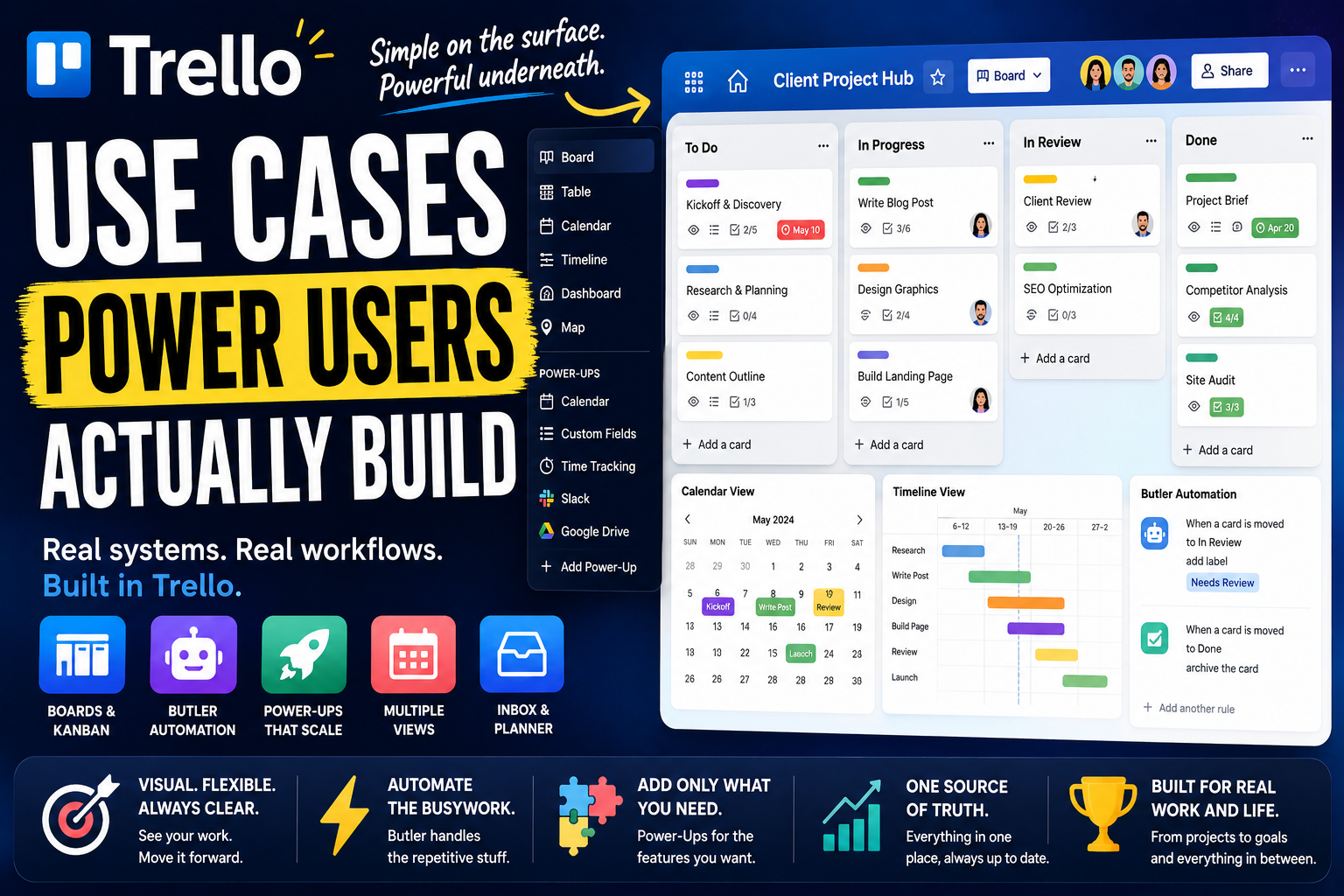
But power users see something else. To them, that simple board is a flexible canvas. They use Butler to automate the busywork, stack Power-Ups to add exactly the features they need, switch between calendar and timeline views, and run boards for things most people would never think to put on a Trello board.
The result is that Trello can be both the easiest productivity tool you have ever used and a surprisingly capable system - depending entirely on who is holding it. Two people can use the same app and have completely different experiences.
Here is a full look at what Trello power users actually build, and how.
What separates a Trello power user from everyone else
The difference is not complexity. Trello power users do not turn their boards into a tangled database. The difference is knowing how to extend the simple model without breaking it.
Everything in Trello sits on the same foundation: a board holds lists, lists hold cards, and a card holds the real detail - description, checklists, due dates, labels, members, and attachments. Casual users stop there. Power users build on top of it with four things:
- Butler automation. Trello's built-in, no-code automation engine. Rules, card buttons, board buttons, and scheduled commands handle the repetitive moving, labeling, and reminding so you do not have to.
- Power-Ups. Add-ons that bolt extra capability onto a board - calendar views, custom fields, time tracking, integrations with tools like Slack and Google Drive. You add only what a board actually needs.
- Multiple views. On paid plans, the same cards can be shown as a Calendar, Timeline, Table, Dashboard, or Map, not just a Kanban board.
- The Inbox and Planner. The newer capture-and-schedule layer that turns Trello into a personal productivity hub, not just a project board.
The mindset behind all of it: a power user does not fight Trello's simplicity or try to make it act like heavier software. They keep the board clean and readable, and let automation and Power-Ups do the work underneath.
With that in mind, here is what people build.
Personal productivity systems power users build
Trello is built for teams, but it is also one of the most popular personal productivity tools around - and power users run a lot of their own life on it.
A personal kanban and GTD system
The foundation. Power users build a personal board with lists for the stages their work moves through - often something like "Inbox, This Week, Today, Doing, Done." Cards flow left to right as work progresses.
Many model it on Getting Things Done, using labels for context and a "Waiting" list for anything blocked. It is a to-do system you can see at a glance, and the act of dragging a card forward gives a small, real sense of progress.
Capturing everything with the Inbox
The Trello Inbox is a single place to dump every task, idea, or reminder before sorting it. Power users lean on it hard. You can forward an email into it, save a Slack or Teams message to it, or jot a quick note from your phone.
AI then reads what you captured and pulls out due dates and action items automatically. Nothing lives in your head or scattered across apps - it all lands in one place to be triaged later.
Daily planning with the Planner
The Trello Planner is a calendar layer that syncs with Google or Outlook. Power users drag cards from the Inbox or their boards straight onto the calendar, which blocks real time for the work.
The point is honest planning. You are not just listing tasks, you are placing them against the meetings already on your calendar and deciding when each one actually happens. Focus time stops being theoretical.
Life organization beyond work
Power users run boards for things that have nothing to do with their job. Trip planning, with a list per stage of the journey. Home renovation, with a card per room. Meal planning, reading lists, gift ideas, moving house.
Anything that has steps and stages fits a board naturally. Because Trello is so quick to set up, spinning up a board for a new part of life costs almost nothing.
Solo operator and freelance workflows
This is where Trello quietly becomes a business tool. Freelancers and solo operators use it to run client work without paying for anything heavier.
Running client work end to end
Power users give each client their own board, or use one board with a list per client. A consistent set of lists - "Brief, In Progress, Review, Approved, Delivered" - tracks every piece of work through the same flow.
Board templates make starting a new client instant: duplicate the template, rename it, and the whole structure is ready. Every client looks the same, so nothing slips through the cracks.
A lightweight CRM and sales pipeline
You do not need a dedicated CRM to track leads. Power users build a pipeline board where each list is a deal stage - "Lead, Contacted, Proposal Sent, Negotiating, Won." Each prospect is a card you drag forward as the deal moves.
The Custom Fields Power-Up adds deal value, contact details, and source to each card. Butler can trigger follow-up reminders automatically. It is a visual sales pipeline that takes minutes to build.
Content and editorial calendars
Writers, creators, and marketers run their publishing schedule on a Trello board. Each piece of content is a card carrying its brief, outline, draft links, and checklist of production steps.
A pipeline of lists shows what is in progress, and the Calendar view shows the publishing schedule by date. Labels mark the channel - blog, newsletter, video, social. The whole content operation sits on one readable board.
Freelance operations and intake
Power users handle the admin side on Trello too. A simple intake setup - a form Power-Up or a shared board - turns client requests into cards automatically, with the details already filled in.
Time-tracking Power-Ups log hours against cards for billing. A separate board can track invoices through "Draft, Sent, Paid." The boring parts of freelancing become visible and hard to forget.
How teams run on Trello
Personal use is one thing. Trello is also used by millions of teams, and power users push it well past basic task tracking.
Project and task management
The core team use case. A board represents a project, lists represent stages, and cards represent tasks with owners, due dates, and checklists. In one glance, everyone sees what is being worked on and where it stands.
Power users keep boards clean by using labels for category, due dates for timing, and Butler to move and flag cards automatically. The visual simplicity is exactly why teams adopt it - status is obvious without a meeting.
Software development and bug tracking
Smaller dev teams run development on Trello with a classic board - "Backlog, To Do, In Progress, Code Review, Done." Cards hold specs, checklists, and attachments.
A bug-tracking board captures issues, with labels for severity and Butler routing them to the right person. For teams that also use Jira, the integration links the two, so Trello can stay the lightweight front end while heavier tracking happens elsewhere.
Marketing and campaign management
Marketing teams run campaigns, content production, and launches on Trello. A campaign board tracks every asset from idea to published, with labels for channel and a card per deliverable.
Calendar and Timeline views turn the same board into a schedule, so the team sees both the pipeline and the dates. Whiteboards and brainstorms become cards, connecting the planning directly to the work that delivers it.
Hiring and recruiting pipelines
Recruiting is a natural fit for Trello's columns. A hiring board moves candidates through stages - "Applied, Screening, Interview, Offer, Hired" - with one card per candidate.
Each card holds the resume, interview notes, and a checklist of steps. The whole team sees where every candidate stands, and dragging a card forward is the entire status update.
Customer support and request tracking
Teams use Trello to manage incoming requests, support tickets, and internal asks. A board captures each request as a card, labels mark priority and type, and lists track it from "New" to "Resolved."
Butler automates the routine handling - assigning, labeling, nudging stale cards. For teams that do not need a full help desk, a well-run request board is enough.
Event and project planning
Trello is widely used to plan events, launches, and one-off projects. A board breaks the event into phases, with cards for every task, vendor, and deadline.
Checklists handle the dozens of small details inside each card, and the Calendar view keeps the timeline visible. When the event is over, the board becomes a reusable template for the next one.
The advanced layer: automation, Power-Ups, and views
This is where power users separate themselves - turning a simple board into a system that mostly runs itself.
Butler automation
Butler is Trello's built-in automation, and it is free. Power users use it constantly. Rules fire on triggers - when a card is moved, due, or labeled. Card and board buttons turn multi-step actions into one click. Scheduled commands run maintenance, like archiving done cards every week.
A typical setup: when a card moves to "Review," Butler assigns the reviewer, adds a checklist, and sets a due date. The board stays organized without anyone tidying it. Butler can also reach into Slack, Jira, and email, so the automation extends past the board.
Power-Ups and integrations
Power-Ups are how Trello scales to fit a specific workflow. There are hundreds of them. Power users add Custom Fields to give cards structured data, Calendar for date views, time tracking for billing, and integrations with Google Drive, Slack, and other tools they already use.
The key is restraint. Power users add only the Power-Ups a board genuinely needs, so the board gains capability without losing the clarity that made Trello worth using.
Multiple board views
On paid plans, the same cards can be seen as more than a Kanban board. Calendar view shows work by date. Timeline view shows it as a Gantt-style schedule. Table view shows it like a spreadsheet across boards. Dashboard view turns it into charts. Map view places location-based cards geographically.
Power users switch views by audience and task - board for daily work, Timeline for planning, Dashboard for a status check - all from the same underlying cards.
Mirror cards and multi-board workflows
Power users almost always run many boards, and Mirror cards solve the problem that creates. A single card can be mirrored across several boards and stay in sync everywhere.
So a task can live on both a team board and a personal board, update in one place, and reflect everywhere. Mirrored cards also show up in every view and filter, which makes running work across a dozen boards manageable instead of chaotic.
AI-assisted capture and summaries
Trello's AI, built on Atlassian Intelligence, focuses on capture and clarity. It reads forwarded emails and messages dropped into the Inbox and extracts due dates, priorities, and action items automatically.
It can also summarize a busy card or clean up writing inside one. It is a lighter touch than the autonomous agents in some competitors - aimed at reducing friction rather than running work for you, which fits Trello's whole personality.
Where Trello is not the right tool
A roundup like this can make Trello sound like it does everything. It does a lot, but power users are usually clear about its limits.
The main one is depth. Trello is board-first by design. It is not built for complex project dependencies, portfolio-level rollups across many projects, or detailed resource management. Teams that need that structure tend to outgrow it and move to a heavier tool.
It is also not a documents or database tool. Cards are great for tasks, but Trello is not the place for long-form writing or a structured knowledge base. Boards can sprawl as an organization scales, and some of the most useful features - extra views, unlimited automation - sit on the paid tiers.
The honest takeaway: Trello is excellent for visual, board-shaped work and personal organization, and it deliberately stops short of being heavy project software. Power users lean into that strength rather than forcing it to be something it is not.
The common thread
Look across all of these use cases and one pattern stands out. Trello power users are not trying to build the most powerful system possible. They are trying to build the simplest system that still does the job.
The CRM, the content calendar, the client boards, the personal kanban - in a good Trello setup they are not complicated. They are clean boards with smart automation running quietly underneath. That is the real appeal: Trello gives you just enough structure to stay organized, and gets out of the way.
Worth one honest note to close on. With Notion or ClickUp, the temptation is to overbuild. With Trello, the discipline is different - the skill is resisting the urge to bolt on every Power-Up and automation until the board is cluttered. The best Trello power users keep boards readable, automate the boring parts, and treat simplicity as the feature it was always meant to be.
FAQ
What is Trello used for?
Trello is a visual, Kanban-style tool for organizing tasks and projects into boards, lists, and cards. People use it for project management, personal task tracking, content calendars, CRMs, hiring pipelines, event planning, and general life organization.
Is Trello good for personal use or only for teams?
Both. Trello is one of the most popular personal productivity tools available. The Inbox and Planner are built specifically for individual use, and many power users run their personal tasks, goals, and life admin entirely on Trello boards.
What makes someone a Trello power user?
Power users go beyond dragging cards. They automate workflows with Butler, add Power-Ups to extend boards, switch between Calendar, Timeline, and Table views, use Mirror cards across multiple boards, and rely on templates. The skill is extending Trello without losing its simplicity.
What is Butler in Trello?
Butler is Trello's built-in, no-code automation engine. It lets you create rules, card and board buttons, and scheduled commands that move cards, set due dates, assign members, and post updates automatically. It is available on free and paid plans.
What are Trello Power-Ups?
Power-Ups are add-ons that extend a Trello board with extra features and integrations - calendar views, custom fields, time tracking, and connections to tools like Slack and Google Drive. You enable only the ones a board needs.
Can Trello replace other project management tools?
For visual, board-shaped work and smaller teams, often yes. It is less suited to complex projects with heavy dependencies, portfolio reporting, or resource management - teams needing that depth usually choose a heavier tool. Trello is intentionally simpler.
Is Trello good for teams, and what is the downside?
It works well for teams that want low-friction, visual task management. The main downsides are limited depth for complex projects, board sprawl as an organization grows, and advanced views and unlimited automation being reserved for paid plans.
Do you need to pay for Trello to use it well?
The free plan is generous and includes Butler automation. Paid plans add the extra views (Timeline, Table, Dashboard, Map), more Power-Ups per board, unlimited automation, and AI features. Many individuals never need to upgrade; most teams eventually do.
Date-based AI Task Manager
Plan smarter, execute faster, achieve more
Create tasks in seconds, generate AI-powered plans, and review progress with intelligent summaries. Perfect for individuals and teams who want to stay organized without complexity.
Get started with your preferred account