ClickUp Use Cases: What Power Users Actually Build With It
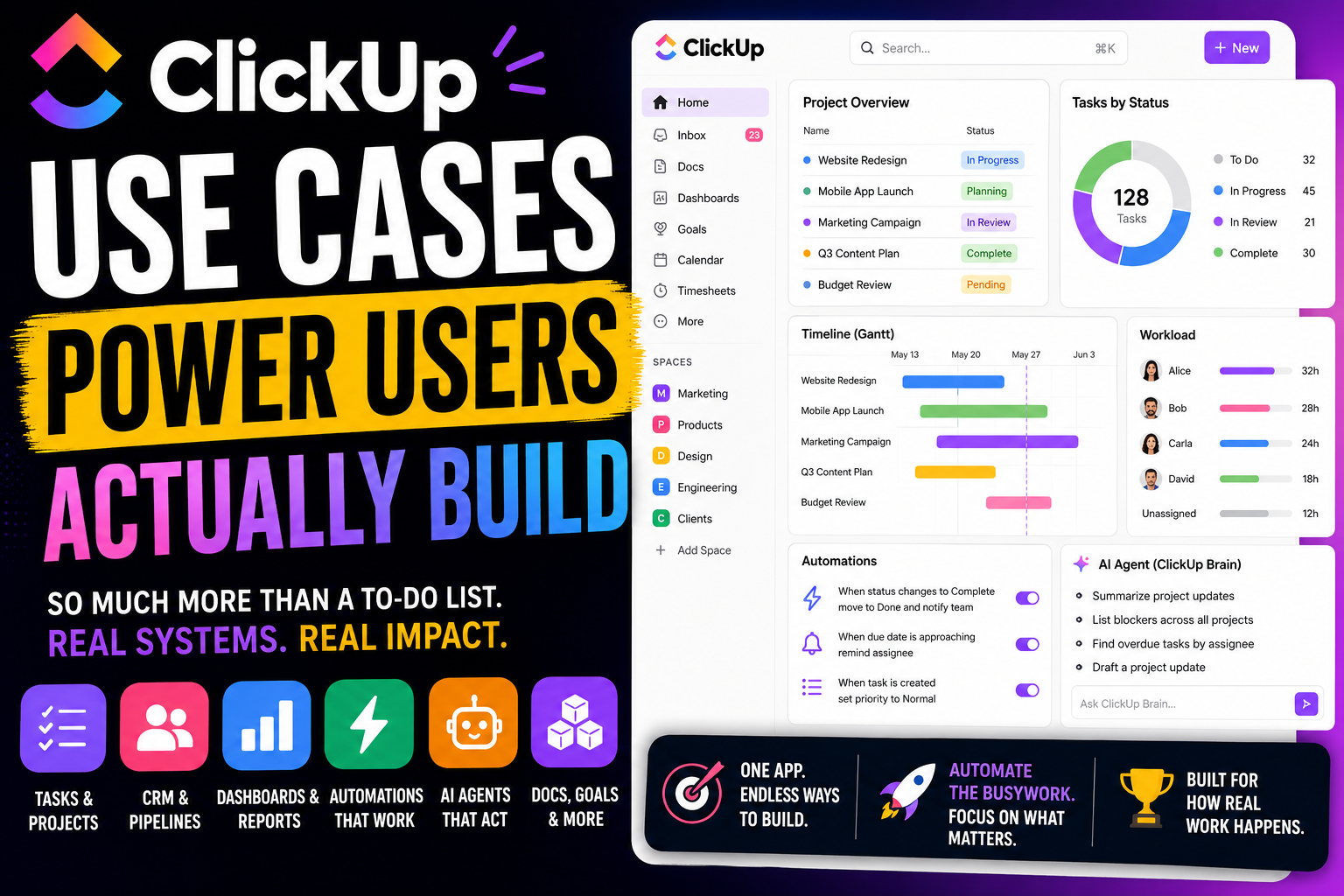
ClickUp markets itself as "the everything app for work." It is a bold claim, and for most people who sign up, it stays just a claim. They use ClickUp as a to-do list with a few extra columns and never touch the rest.
Power users treat it completely differently. To them, ClickUp is not a task app. It is a work operating system - a place where projects, docs, goals, dashboards, automations, and now AI agents all run in one connected workspace. They do not just track work in it. They run their business in it.
That is the gap this article is about. Two people can open the same app and have wildly different experiences: one has a tidy task list, the other has replaced five tools and automated half their week.
Here is a full look at what ClickUp power users actually build, and how.
What separates a ClickUp power user from everyone else
The difference is not hours logged. It is how much of the platform you actually use.
Casual users live in a single task list. Power users understand the structure underneath it. ClickUp is built as a hierarchy - Workspace, then Spaces, then Folders, then Lists, then Tasks and Subtasks. Power users use that hierarchy deliberately to separate departments, clients, or life areas, so a large workspace stays navigable instead of turning into a mess.
From there, three features do most of the heavy lifting:
- Custom statuses. Instead of a plain "to do, done," each workflow gets its own stages - "drafting, in review, approved, published." This single feature is what makes a process visible at a glance.
- Custom fields. Tasks carry structured data - budget, client, effort, links, dropdowns - so a list becomes a real database you can sort and filter.
- Views. The same set of tasks can be shown as a List, Board, Calendar, Gantt, Timeline, Table, Workload, or Mind Map. Nothing is duplicated. You just look at the same data through the lens that fits the moment.
Then there are ClickApps, the toggleable features that turn parts of ClickUp on or off per Space - time tracking, sprints, dependencies, priorities, and more. Power users switch on only what a given team needs and leave the rest off.
Add dashboards, automations, and ClickUp Brain on top, and you stop using ClickUp as an app. You start using it as a system you configure yourself. That is the real definition of a power user.
With that foundation in place, here is what people build.
Personal productivity systems power users build
ClickUp is built for teams, but plenty of power users run their personal life in it too - and the same depth that handles a company also handles one person well.
A personal task manager and GTD system
The foundation. Power users build a personal task system, often modeled on Getting Things Done, with custom statuses for "next action, waiting, someday" and custom fields for context and energy level.
A private Space keeps personal tasks fully separate from team work. Priority flags mark what actually matters. Saved filtered views answer "what can I do right now" without scrolling. It is a to-do list with the structure of a real system behind it.
Daily and weekly planning with the Planner
ClickUp's Planner and Calendar pull tasks, meetings, and deadlines into one place. Power users drag tasks straight onto their calendar, which turns them into time blocks for the day.
The point is realistic planning. You are not just listing what to do, you are deciding when, against the meetings already on the calendar. It closes the gap between a task list and an actual schedule.
Goal and habit tracking
ClickUp has a dedicated Goals feature where targets break down into measurable Targets that can be tied to tasks. Power users use it for quarterly goals, and progress updates automatically as the linked work gets done.
For habits, a simple recurring-task setup or a tracking List does the job. It is less playful than a dedicated habit app, but it sits right next to the work that the habits are supposed to support.
A personal command-center dashboard
Power users build one dashboard that acts as personal mission control. It shows tasks due today, anything overdue, current priorities, and time tracked this week, all pulled live from across the workspace.
Open ClickUp in the morning and the day is already laid out - no hunting through Lists to figure out where to start. The dashboard does the triage for you.
Solo operator and freelance workflows
This is where ClickUp earns its keep for independents. Freelancers, consultants, and agency owners use it to run the entire business without paying for five separate tools.
Running client work end to end
Power users give each client their own Space or Folder, with consistent List structures inside. Custom statuses track each deliverable through its real workflow. Templates spin up a new client setup in seconds instead of an hour.
The result is that every client looks the same structurally, so nothing slips, and onboarding a new one is a repeatable process rather than a scramble.
A built-in CRM and sales pipeline
You do not need a separate CRM to track leads and deals. Power users build one in ClickUp using a List as the pipeline, custom statuses as deal stages, and custom fields for deal value, contact details, and source.
A Board view turns the pipeline into a visual flow you can drag deals through. Automations move tasks forward and trigger follow-up reminders. It is a CRM that bends exactly to how you sell and lives next to the work you deliver.
Time tracking and billing
ClickUp has native time tracking, and for freelancers who bill by the hour, this is a core use case. Power users track time directly on tasks, tag entries as billable, and add hourly rates as custom fields.
A dashboard then totals billable hours per client for the month. Instead of reconstructing your week from memory at invoice time, the numbers are already there, task by task.
Intake forms and request management
ClickUp Forms turn a request into a task automatically. Power users use this for client intake, project briefs, bug reports, and content requests.
Someone fills out a form, and a fully structured task lands in the right List with the right fields populated and assignee set. No copy-paste, no missing details, no requests lost in email or chat.
How teams run on ClickUp
Personal use is one thing. The bigger story is teams - sometimes whole companies - running nearly every function inside ClickUp.
Project and portfolio management
The core team use case. Tasks roll up into projects, projects roll up into Spaces, and dependencies link the work that has to happen in sequence. Gantt and Timeline views show the schedule; Workload view shows who is over capacity.
Leadership gets a portfolio-level dashboard across every project at once. The same data serves the person doing the task and the executive watching the whole thing.
Agile and sprint management for dev teams
With the Sprints ClickApp switched on, engineering teams run full agile workflows in ClickUp. Sprint points, sprint Lists, velocity tracking, and burndown charts are all built in.
Tasks link to docs and bug reports, and integrations with GitHub, GitLab, and Bitbucket connect commits and pull requests to the work. For teams that want planning, docs, and code context in one place, it is a real Jira alternative.
Marketing and campaign management
Marketing teams run campaigns, content calendars, and creative production in ClickUp. A campaign is a project; each asset is a task with its brief, drafts, and approvals attached.
Calendar view shows the publishing schedule. Proofing tools let reviewers comment directly on creative files. Whiteboards hold the early strategy, then connect straight to the tasks that execute it, so planning and delivery never drift apart.
Product roadmaps and feature planning
Product teams build roadmaps as Lists or Boards grouped by quarter or status. Each feature is a task carrying its spec, designs, and linked development work.
Feedback closes the loop. Incoming requests land as tasks, get linked to roadmap items, and a count shows how often each one was asked for. What to build next becomes evidence instead of opinion.
Team wikis and documentation
ClickUp Docs and Wikis give teams a connected knowledge base - processes, policies, onboarding guides, and meeting notes - that lives in the same place as the work.
The advantage is the link between them. A Doc can be attached to the exact task or project it explains, and a task can reference the process it follows. Documentation stops being a separate tool nobody opens.
Goals and OKR tracking
The Goals feature is built for this. Objectives break down into measurable Targets, and Targets connect to the tasks and Lists that drive them, so progress updates on its own as work completes.
Leadership sees a live OKR picture instead of a quarterly spreadsheet that goes stale by week two. Strategy and the day-to-day stay connected rather than living in separate documents.
Customer support and ticketing
Plenty of teams run support inside ClickUp. A Form captures incoming tickets, custom statuses track them through resolution, and automations route each one to the right person.
Because support lives in the same workspace as engineering and product, a bug ticket can link directly to the development task that fixes it. The customer problem and the work to solve it are never in separate systems.
The advanced layer: dashboards, automation, and AI
This is where power users stop doing work by hand and start designing systems that run themselves.
Dashboards and real-time reporting
Dashboards are one of ClickUp's strongest features and a clear power-user marker. They pull live data from across the workspace into cards - task counts, time tracked, sprint velocity, workload, custom calculations.
Power users build dashboards per audience: a personal one for daily focus, a team one for standups, an executive one for portfolio health. Status reporting that used to eat half an hour becomes a link you send.
No-code automations
ClickUp automations follow a simple Trigger, Condition, Action pattern. When a status changes, assign the next person. When a due date passes, notify the owner. When a task is created in a List, set its priority.
Power users chain these together so routine coordination - the assigning, the nudging, the status syncing - just happens. With 1,000-plus integrations, those automations can reach well beyond ClickUp too.
AI agents that run the busywork
This is the fastest-moving part of the platform. ClickUp Brain is the AI layer woven through tasks, docs, and dashboards - it summarizes projects, generates status updates from real task activity, and answers questions like "what did the client say about the timeline" by searching the whole workspace.
On top of Brain sit the agents. Autopilot Agents handle recurring jobs like standup compilation and ticket triage without being prompted. Super Agents go further: they appear as real members of the workspace, can be assigned tasks and mentioned in comments, hold memory over time, and run on schedules. Teams now use them to triage bugs, compile reports, and track onboarding on their own. For a growing number of power users, ClickUp has shifted from something they maintain to something they delegate to. One practical note: this AI sits in a paid tier on top of your plan, so the capability is real but not free.
Whiteboards and visual planning
ClickUp Whiteboards are a digital canvas for brainstorming, mapping processes, and sketching roadmaps. The detail that matters for power users: any element on a whiteboard can be turned into a real task.
So the strategy session does not end as a photo of sticky notes. It converts directly into tracked work, with the thinking and the execution connected from the start.
ClickUp as the hub, with AI search across tools
Power users increasingly position ClickUp as the center of their stack rather than just one app in it. Brain MAX, the desktop companion, searches across ClickUp plus connected tools like Google Drive and GitHub from one bar, with source attribution.
ClickUp also supports MCP, so external AI tools can connect into the workspace directly. The direction is clear: ClickUp wants to be the place the rest of your tools report into.
Where ClickUp is not the right tool
A roundup like this can read as if ClickUp does everything well. It does a lot, but power users are usually the first to name the limits.
The biggest one is complexity. ClickUp's flexibility comes with a real setup cost - teams often need a couple of days for a basic configuration and a few weeks to get genuinely comfortable, where a simpler tool like Trello takes an afternoon. The 4.0 redesign is faster and cleaner, but the platform still asks more of you upfront.
It is also not a doc-first tool. The Docs are capable, but writing-heavy teams may still prefer a dedicated workspace for long-form content. Very large workspaces with heavy automations can feel weighty. And the strongest AI features are a paid add-on, which some competitors include by default.
The honest takeaway: ClickUp is exceptional when you want one configurable system to run real operational work, and overkill when you just need a quick shared list. Power users lean into the former and do not pretend it is the latter.
The common thread
Look across all of these use cases and one pattern stands out. Power users do not adopt ClickUp to track tasks. They adopt it to stop juggling tools.
The CRM, the sprint board, the docs, the dashboards, the time tracking, the roadmap - in a mature setup they are not separate apps. They are different parts of one connected workspace, sharing the same tasks and the same data. That is the real reason people commit to ClickUp despite the learning curve: the consolidation genuinely pays off.
Worth one honest caveat to close on. That same flexibility is also the trap. ClickUp will happily let you build something far more elaborate than you need, and it is easy to spend more time tuning the system than doing the work. The power users who get real value are the ones who configure deliberately, keep it simpler than the platform allows, and let the structure serve the work rather than the other way around.
FAQ
What is ClickUp used for?
ClickUp is an all-in-one work management platform. People use it for project management, task tracking, docs and wikis, goals, dashboards, time tracking, sprints, CRMs, and AI-assisted workflows. It is designed to replace several separate tools with one workspace.
Is ClickUp good for personal use or only for teams?
Both. ClickUp is built for teams, but many power users run personal task systems, planning, and goals in it. A private Space keeps personal work fully separate from any team workspace.
What makes someone a ClickUp power user?
Power users go beyond basic task lists. They use the Workspace hierarchy deliberately, build custom statuses and custom fields, switch views to fit the work, configure ClickApps, and rely on dashboards, automations, and AI. The difference is treating ClickUp as a configurable system, not a finished app.
Can ClickUp really replace other apps?
For many teams, yes. It commonly replaces a project manager, a docs tool, a whiteboard app, a time tracker, and a lightweight CRM. It is less likely to fully replace highly specialized tools, but consolidation is the main reason people adopt it.
What is the difference between ClickUp Brain and Super Agents?
ClickUp Brain is the AI layer that answers questions, summarizes, and writes when you prompt it. Super Agents are autonomous AI "coworkers" that appear as workspace members, hold memory, and run recurring work on triggers or schedules without being asked. Brain is the engine; Super Agents are teammates running on it.
Is ClickUp good for freelancers and agencies?
Yes. Freelancers and agencies use it to run client work, a sales pipeline, time tracking, billing, and intake forms in one place. Giving each client their own Space and using templates makes onboarding new clients fast and consistent.
Do you need to know how to code to use ClickUp at a power-user level?
No. The hierarchy, custom fields, views, automations, and dashboards are all no-code. Integrations and the API help with advanced setups, but most power-user workspaces never require any code.
What is the downside of using ClickUp?
The main downsides are complexity and setup time - it takes longer to configure than simpler tools - and the temptation to over-build. The strongest AI features also sit in a paid add-on. The most effective users configure deliberately and keep their setup leaner than the platform allows.
Date-based AI Task Manager
Plan smarter, execute faster, achieve more
Create tasks in seconds, generate AI-powered plans, and review progress with intelligent summaries. Perfect for individuals and teams who want to stay organized without complexity.
Get started with your preferred account