
Basecamp Use Cases: What Power Users Actually Build With It
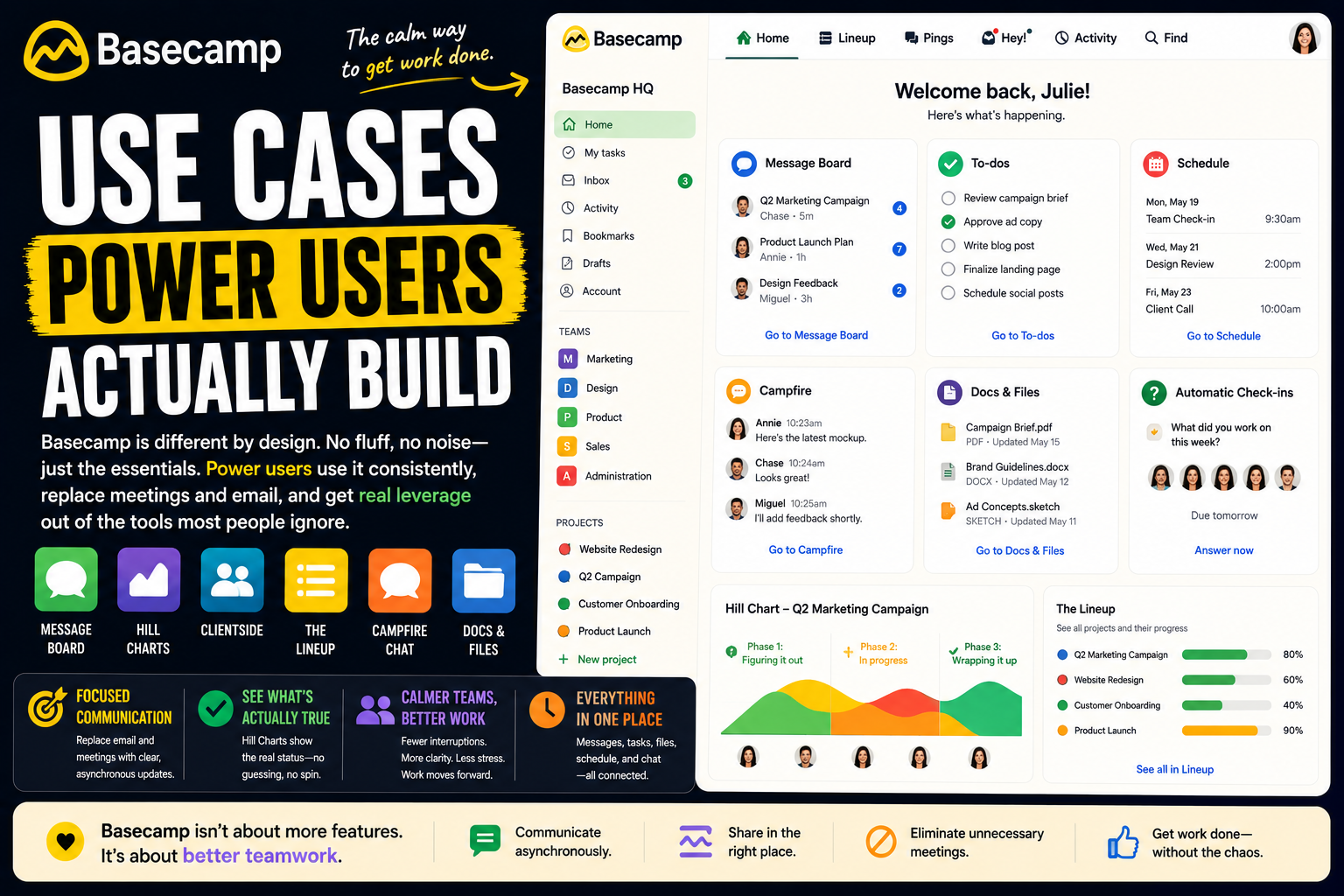
Basecamp is the odd one out among project management tools. Most platforms compete on features - more views, more automation, more custom fields. Basecamp competes on the opposite. It is deliberately simple, deliberately opinionated, and proud of everything it leaves out.
That makes "power user" mean something different here. With most tools, a power user is someone who builds an intricate configured system. With Basecamp, there is nothing intricate to build. Every project comes with the same fixed set of tools, and you cannot bolt on automation engines or custom workflows even if you want to.
So the gap between a casual Basecamp user and a power user is not about configuration. It is about practice. A power user runs disciplined communication, replaces meetings and email properly, manages many projects calmly, and gets real leverage out of features most people ignore. They do not build a system. They build a habit.
Here is a full look at what Basecamp power users actually do, and how.
What separates a Basecamp power user from everyone else
The difference is not effort spent configuring. It is understanding what Basecamp is for and using it the way it was designed.
The structure is fixed on purpose. Your account has an HQ, Teams, and Projects, and every one of them contains the same core tools - To-dos, a Message Board, Campfire chat, a Schedule, Docs and Files, a Card Table, and Automatic Check-ins. There are no custom fields to design and no workflows to wire up. Casual users treat that as a limitation. Power users treat it as a feature, and lean on the parts that reward real use:
- The Message Board. Long-form, threaded posts that genuinely replace internal email.
- Hill Charts. Basecamp's signature way of showing whether work is still being figured out or actually heading toward done.
- Clientside. Controlled client access that keeps internal mess separate from what a client sees.
- The Lineup. A single timeline of every active project across the account.
- Notification discipline. Focus Mode, Work Can Wait, and "just following" projects, used deliberately.
The mindset behind all of it: a power user does not bend Basecamp into something it is not. They commit to using it well, consistently, so the whole team's work and communication actually lives in one calm place.
With that in mind, here is what people do.
Personal productivity systems power users build
Basecamp is a collaboration tool at heart, not a personal planner, and its pricing reflects that. But people do run their own work in it, and power users keep that personal setup simple.
A personal project as a single home for your work
The natural starting point. Power users create one project for themselves and treat it as a personal base - To-dos for tasks, the Schedule for dates, Docs and Files for reference.
The value is consolidation, not features. Instead of work scattered across notes apps and email, one project holds it. It is a deliberately plain home that mirrors how the rest of Basecamp works.
To-do lists that actually get used
Basecamp's To-dos are straightforward - lists, items, assignees, due dates, and comments on any item. For personal work, power users keep a few clear lists rather than one giant one.
There is no priority scoring or custom status to fuss over. An item is open or done. That plainness is the point: the list stays something you maintain instead of something you manage.
The Schedule and Card Table for personal planning
Power users use the Schedule for dated commitments and the Card Table - Basecamp's simple board - for anything that moves through a few stages.
Neither is elaborate. The Schedule shows what is coming, the Card Table shows what is in motion. For personal planning, that is usually enough, and there is nothing extra to maintain.
Docs and Files as a personal reference base
Basecamp's Docs and Files give you a clean place to keep written reference material and documents. Power users use it as a personal knowledge base - notes, checklists, things worth keeping.
Because docs live inside the project rather than in a separate app, reference material sits next to the work it relates to. It is simple storage, organized by context.
Solo operator and freelance workflows
This is one of Basecamp's true sweet spots. Solopreneurs, freelancers, and small agencies use it to run client work, and its design fits that job almost perfectly.
Running client projects in one place
Power users give each client their own project. To-dos hold the work, the Message Board holds decisions and updates, Campfire handles quick chat, and Docs and Files holds deliverables.
The win is that nothing about the engagement lives in email. Briefs, feedback, files, and tasks are all in one project, and a year later the full history is still there in order.
Clientside: a clean, controlled client view
Clientside is Basecamp's standout feature for client work. It splits a project into what the team sees and what the client sees - the messy, in-progress discussion stays internal, while the client only sees what is deliberately shared.
For an agency, that solves a real anxiety: a client glimpsing unfinished work. Power users run every client engagement through Clientside so the client gets a calm, professional view and the team still has a backstage to think out loud in.
Project templates for repeatable client work
Most client work follows a pattern. Power users build a project template with the standard To-do lists, docs, and schedule already in place.
Starting a new client becomes a one-click action rather than a rebuild from memory. Every engagement runs the same reliable way, and nothing standard gets forgotten in setup.
Keeping all client communication out of email
Power users use the Message Board as the official record for each client. Announcements, status updates, and decisions are posted there, not emailed.
The Message Board's long-form, threaded format suits real updates far better than a chat stream, and it keeps the client relationship documented in one place. Email stops being where the project quietly lives.
How teams run on Basecamp
Personal and solo use is one thing. Basecamp's real purpose is teams - and 37signals famously runs its own entire company on it.
Replacing the meeting-and-email pile-up
This is the core use case. Teams adopt Basecamp specifically to cut meetings and internal email. The Message Board carries announcements and discussions that would otherwise be a meeting or a long email thread.
Basecamp calls itself the middle ground - email is too private, group chat is too noisy, and a message board sits between them. Power-user teams lean into that, posting updates where everyone can see them on their own schedule.
Running projects with To-dos and the Card Table
Teams run projects with To-do lists for the work and the Card Table for anything that moves through stages. Each project keeps its tasks, files, schedule, and conversation together.
There is no dependency mapping or Gantt chart, and power-user teams accept that. The setup is intentionally light, so the project stays easy to read at a glance.
A company HQ as an intranet
Power-user teams treat the HQ as a company intranet. Company-wide announcements, shared policies, the employee handbook, and general docs all live there.
Because the HQ uses the same tools as every project, there is nothing new to learn. It becomes the permanent home base for company information, separate from any single project.
Cross-team coordination with Teams
Larger groups use Teams to give each department its own space - one for marketing, one for operations, and so on - each with its own Message Board, To-dos, and chat.
Projects then sit alongside Teams for cross-functional work. The structure stays flat and predictable, so people always know where a given conversation belongs.
Automatic Check-ins instead of status meetings
Automatic Check-ins are one of Basecamp's most-loved features. The tool asks the team recurring questions on a schedule - "What did you work on today?" or a weekly version - and collects everyone's answers in one thread.
Power-user teams use this to replace standing status meetings entirely. The update still happens, but asynchronously, without pulling everyone into a call.
Managing many projects with the Lineup
For teams running many projects at once, the Lineup is the high-level view. It shows every active project on a single timeline, with its start and end, so you can see the whole workload in one place.
Power users use the Lineup as the regular check on what is in flight and what is coming - the closest Basecamp gets to portfolio visibility, and deliberately kept simple.
The features power users lean on
With most tools, this section would cover automation and AI. Basecamp has neither by design. Its depth is in features experienced users actually use well.
Hill Charts: seeing where work really stands
Hill Charts are Basecamp's signature idea. Instead of a percentage, work on a To-do list is plotted on a hill - the uphill side is the figuring-out phase, the downhill side is the executing phase.
It captures something a percentage hides: whether a task is genuinely understood yet. Power users update Hill Charts honestly, so a glance shows not just how much is done, but where the real uncertainty still sits.
Notification discipline
Power users treat Basecamp's notification controls as essential, not optional. Focus Mode silences everything for a stretch of deep work. Work Can Wait holds notifications outside chosen hours. "Just following" a project keeps full access but mutes its noise unless you are mentioned.
Used together, these keep Basecamp from becoming another interruption machine. The calm is not automatic - power users create it with these settings.
Doors and integrations
Basecamp keeps its own feature set narrow, but Doors bridge to outside tools. A Door is a simple, labeled link inside a project to an external service - a GitHub repo, a Zoom room, a shared drive.
Power users use Doors to keep a project as the starting point even for work that happens elsewhere. The project stays the hub, with clear paths out to the tools the team also needs.
Customizing the tools each project shows
Every project ships with the same tools, but power users tidy each one. Unneeded tools can be switched off, and tools can be renamed to match how the team actually talks.
A simple client project might hide Campfire and the Card Table and rename a list to fit the work. It is light customization, but it keeps each project focused on only what it needs.
My Stuff and the Hey! menu
Basecamp spreads work across many projects, so power users live in the personal views. My Stuff pulls together everything assigned to you, your schedule, and your bookmarks across the whole account.
The Hey! menu collects every notification aimed specifically at you, separate from general project activity. Together they answer "what needs me" without hunting through projects one by one.
Where Basecamp is not the right tool
A roundup like this can make any tool sound universal. Basecamp's limits are not accidental - they are deliberate choices - but they are real, and power users are clear-eyed about them.
There is no automation engine, no custom fields, and no custom workflows. There are no built-in task dependencies and no Gantt chart, so detailed project scheduling is not its strength. Reporting and views are minimal. Native time tracking is a paid add-on rather than a core feature. And Basecamp has deliberately stayed out of the AI-agent race that rivals are sprinting through, consistent with its calm-software philosophy.
Pricing cuts both ways too. The flat-fee plan for unlimited users is excellent value for a sizeable team, but it is awkward for a true solo user, and a smaller per-user plan only partly closes that gap.
The honest takeaway: Basecamp is exceptional for teams that want calm, clear, communication-first project management, and for agencies and freelancers running client work. It is the wrong choice for teams that need automation, deep customization, complex dependencies, or detailed reporting - they will feel the walls fast.
The common thread
Look across all of these use cases and one pattern stands out, and it is the opposite of the pattern in most project management tools.
With other platforms, the power users are the ones who build the most - the deepest automations, the most elaborate connected systems. With Basecamp, the power users are the ones who build the least and practice the most. The leverage comes from running client work cleanly through Clientside, replacing meetings with Check-ins, keeping communication on the Message Board instead of email, and reading progress honestly with Hill Charts. The tool stays simple. The skill is using it consistently.
Worth one honest note to close on - and it is the inverse of the caution that applies to every other tool in this space. With configurable platforms, the risk is overbuilding. With Basecamp, the risk is the opposite: because the tool will not force anything, it only works if the team genuinely commits to it. If people drift back to email for the real conversations, or stop posting updates, or treat Basecamp as a place tasks go to be ignored, its simplicity becomes emptiness. Basecamp does not run your team for you. It gives you a calm, uncluttered place to work - and then it is entirely up to the team's habits whether that place stays the real one.
FAQ
What is Basecamp used for?
Basecamp is a project management and team communication tool. It is used to run projects, coordinate teams, manage client work, and replace internal email and meetings - all through a deliberately simple, fixed set of tools in every project.
Who is Basecamp best for?
Basecamp is best for small and mid-sized teams that want calm, communication-first project management, and especially for agencies, consultants, and freelancers running client work. It suits teams that value simplicity over deep customization.
Is Basecamp good for personal use?
It can work for personal use, but it is built and priced as a collaboration tool. Individuals can run their own work in a single project, though the flat-fee pricing makes it a better fit for teams than for a solo user.
What makes someone a Basecamp power user?
A Basecamp power user is defined by practice, not configuration. They run disciplined communication on the Message Board, replace meetings with Automatic Check-ins, use Clientside for client work, read progress with Hill Charts, and manage their attention with Basecamp's notification controls.
What are Hill Charts in Basecamp?
Hill Charts are Basecamp's signature progress feature. Work is plotted on a hill rather than as a percentage - the uphill side means the work is still being figured out, and the downhill side means it is being executed. It shows uncertainty, not just completion.
What is Clientside in Basecamp?
Clientside is Basecamp's controlled client-access feature. It separates what the internal team sees from what the client sees, so in-progress discussion stays private while the client only sees what is deliberately shared. It is especially useful for agencies.
Does Basecamp have automation, custom fields, or Gantt charts?
No. Basecamp deliberately leaves out automation engines, custom fields, custom workflows, task dependencies, and Gantt charts. This is a design choice in favor of simplicity, and it is also why Basecamp is not suited to highly complex project workflows.
What is the downside of using Basecamp?
The main downsides are the lack of automation, customization, dependencies, and detailed reporting, plus native time tracking being a paid add-on. Its simplicity is a poor fit for teams that need complex workflows, and the pricing is awkward for solo users.
Date-based AI Task Manager
Plan smarter, execute faster, achieve more
Create tasks in seconds, generate AI-powered plans, and review progress with intelligent summaries. Perfect for individuals and teams who want to stay organized without complexity.
Get started with your preferred account