
SelfManager.ai MCP Server: Every Feature Explained (2026)
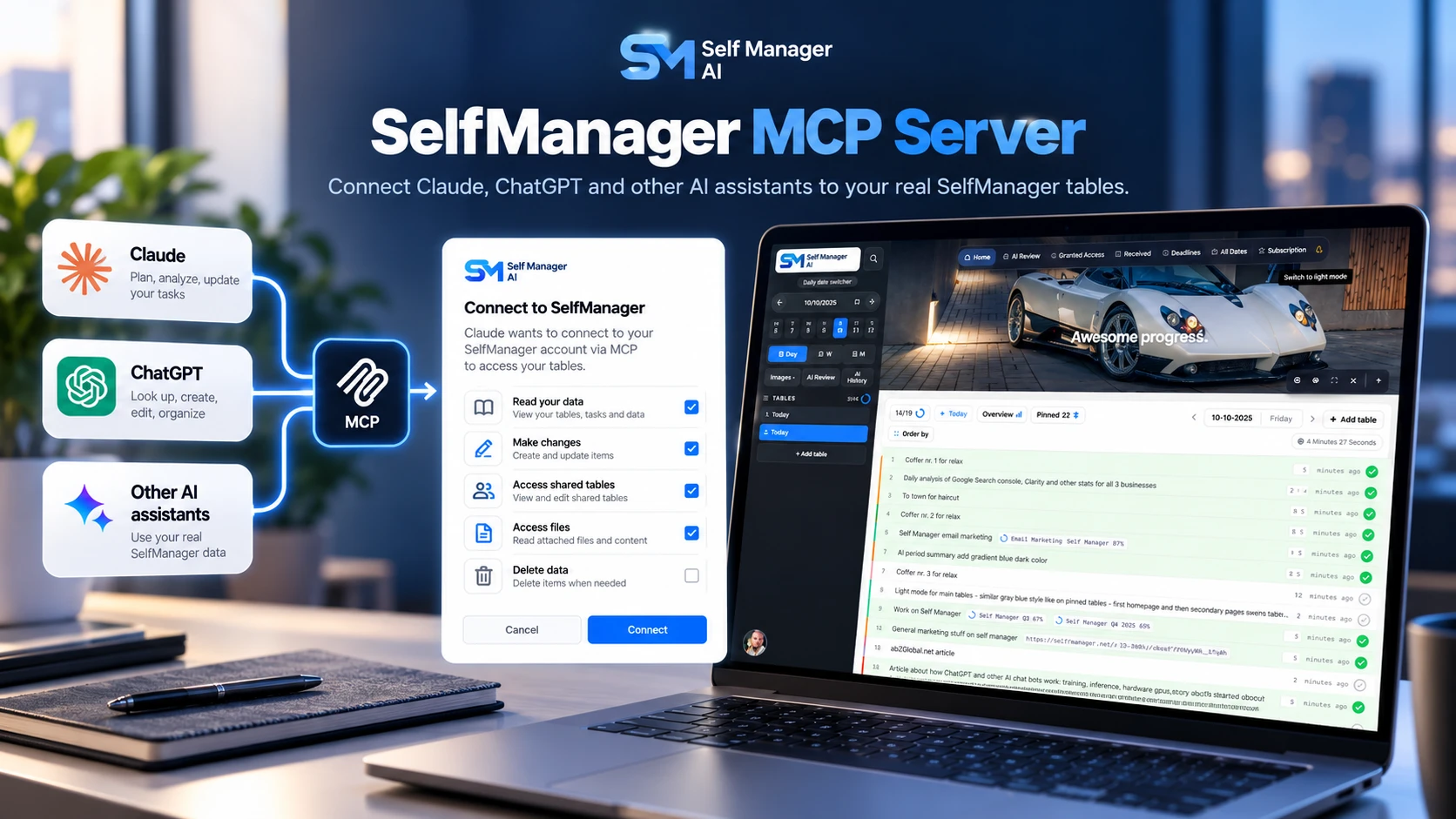
The SelfManager.ai MCP server lets an AI assistant work with your real SelfManager tables. Ask Claude, ChatGPT or another assistant what's on today, have it plan your week as tables and tasks, mark work done, turn a client brief into tasks, or look back over a quarter. It does the work in SelfManager itself, not in a copy you pasted into the chat.
You decide what it may do. Reading is always on. Making changes, deleting, seeing your files and writing in tables other people can see are separate choices you make when you connect. Every change it makes is marked with its name, and you can disconnect it at any time.
This guide covers everything the server does as of October 2026: the assistants that can connect, the permissions, all 60 tools, the ready-made prompts, what it can never do, how you can see what it changed, what it costs, and its limits.
The SelfManager MCP page has the current setup steps and how to get access. For a step-by-step setup with Claude, see How to Use Claude With SelfManager.
What the MCP server is
MCP stands for Model Context Protocol. It's the open standard AI assistants use to work with other apps: the app offers tools, and the assistant calls the ones your request needs. SelfManager's server offers tools for reading your days and tables, changing tasks, making tables and routines, reading your images, recordings and docs, and more.
Your assistant always acts as you. It sees what your account can see in SelfManager and nothing more: your own tables, and the tables other people share with you. It can never reach another account, and it never sees anyone's email address.
Every assistant connects to the same address:
https://api.selfmanager.ai/mcp
How it differs from SelfManager's own AI
SelfManager has AI built in too: AI Plan, AI Review and AI chat, where you pick the model. That AI runs inside SelfManager. The MCP server works the other way round: you stay in your assistant's own app, and it reaches into SelfManager through tools.
Your assistant can read your recorded work and write its own review, but it can't run AI Plan or AI Review for you. Those stay in SelfManager.
How it differs from the API
If you write code, SelfManager also has an API and webhooks: the same operations over plain HTTPS for your own scripts and automations, plus events sent to your app as things happen. The MCP server is for AI assistants, and the API is for code.
Which assistants can connect
Any app that supports remote MCP servers can connect. These are the ones SelfManager lists:
| App | How you add SelfManager |
|---|---|
| Claude (web and desktop) | Settings → Connectors → Add custom connector. Name it SelfManager, paste the address, and select Connect. |
| ChatGPT | Turn on developer mode in Settings, then add a connector named SelfManager with the address. |
| Claude Code | Run claude mcp add --transport http --scope user selfmanager https://api.selfmanager.ai/mcp, then type /mcp in Claude Code to sign in. It's then available in all your projects. |
| Cursor, VS Code, LM Studio and other MCP apps | Add the address as a remote (HTTP) MCP server, then sign in to SelfManager and allow it. |
| Your own tools and scripts | Make a personal API key in My Profile → Connected apps, and send it as Authorization: Bearer <your key>. |
SelfManager recognizes Claude, Claude Code and ChatGPT. For any other app, the approval page says it can't verify the app and names where the access will go. Continue only if you started the connection yourself.
A personal API key is shown once, lasts 30, 90 or 365 days, and can do only what you chose when you made it.
What happens when you connect
Connecting opens selfmanager.ai, where you sign in as usual. SelfManager then shows which account is connecting and what the assistant asks to do. You choose its permissions, then select Allow.
- You need an active SelfManager plan. Individual or Team; the 7-day free trial counts.
- Approving needs a recent sign-in. If you signed in more than 10 minutes ago, SelfManager asks you to sign in again first.
- Your email address must be confirmed. Accounts made with an email and a password confirm it once, from the email SelfManager sent.
- You're told about every new connection. SelfManager sends you a notice whenever a new app connects or a key is made.
- Connections end on their own. One ends after 60 days without use, when you change your password or email address, or when you disconnect it.
The permissions you choose
The approval page lists what the assistant may do. Here is each choice and where it starts:
| Permission | What it allows | Starts |
|---|---|---|
| Read | Your days, tables, tasks, notes, comments, deadlines, routines, AI History, what's shared, and your AI credits | Always on |
| Make changes | Make and copy tables; add and edit tasks, comments and notes in tables only you can see; set deadlines there; manage routines; pin tables; change a table's settings; save to AI History | Ticked unless you untick it |
| Also see your images and voice recordings | See images, and read voice recordings' transcripts | Off unless you tick it |
| Also read your docs | Read the text of the files on tables you can see | Off unless you tick it |
| Tables other people can see | Add tasks, comments and notes there, @mention people, and set deadlines that remind everyone | Off unless you tick it |
| Also delete | Delete one thing at a time, move tables to another day, and reset task times, in tables only you can see | Off unless you tick it |
| Your journal | Read your daily Self message and, with Make changes, add to it or rewrite it | Included when the assistant asks for it |
For a read-only connection, untick Make changes. To change permissions later, remove SelfManager in your assistant's app and connect again. If the old connection still shows in My Profile → Connected apps, disconnect it there.
A prompt like "only use my Client A table" helps your assistant focus, but it isn't an access control. The permissions are.
How SelfManager organizes your work
Your assistant works best when you ask in SelfManager's own terms:
- Every day has its own tables. A table is a list for one day, with its own tasks and progress. Nothing moves to the next day by itself: to carry unfinished work forward, ask your assistant to add it to tomorrow.
- Routines are repeating tables. A repeating table has a schedule (every day, weekdays, every Monday, monthly…), and each day it repeats on gets its own copy, so ticking today's routine leaves tomorrow's fresh.
- Tasks have progress, not just done or not done. Besides completed, a task can be checked a little, done something or almost completed (25%, 50% and 75% toward the table's progress), looked over, or canceled. Priority runs from critical to optional.
- Notes, comments and your journal are different places. Notes are one document per table. Comments are the conversation with the people you share a table with. Your journal is one private line per day, your daily Self message.
- Deadlines belong to tasks. A deadline can remind just you or, on a shared table, everyone on it.
- AI History keeps your saved reviews. It holds the AI Reviews and chats you saved, and your assistant can save its own reviews there.
Name the date and the table ("the Client A table on October 19"). Similar tables often repeat across days, and a date removes the guesswork.
Everything your assistant can read (19 tools)
These tools only read. They cover your own tables and the tables shared with you. Each one is listed by the name your assistant shows when it uses it.
Your days and tables
get_account: your name, plan and today's date, what this connection may do, your AI credits (this week's, bought, and when they renew), and how much of your docs storage is used.get_day: the tables on one day, with their tasks, progress and tracked time.get_days: the same over any range, years too, a page at a time.get_totals: totals per week or month over any range: tables, tasks done, progress and time.list_dates: the days you have tables on, with how many on each, and repeats planned ahead up to the end date you give.get_table: one table, with every task, your deadlines on it, its notes, and its comments if asked.search_tables: your own tables, by a word or phrase in their name, tasks or notes (and comments if asked), over any dates.list_pinned_tables: your pinned tables, in their order.
Deadlines, routines and your journal
list_deadlines: your deadlines, as the Deadlines page shows them.list_repeating_tables: your repeating tables: what repeats, how often, and the next date.get_repeating_table: one repeating table in full: its schedule, and the name, tasks and notes each new copy starts with.get_journal: your journal, for one day or any range.
AI History and AI usage
list_ai_history: the AI Reviews and chats you saved, newest first.get_ai_conversation: one conversation from your AI History, as text.list_ai_usage: what used your AI credits, newest first, as the AI Usage page shows it. A Team owner sees the team's too.
Sharing, comments and notes
list_shared_with_me: the tables other people share with you, whose each is, and your role.list_shared_by_me: your tables other people can see, who is on each (by name), and their role.list_comments: every comment you can see, newest first, with who wrote each.list_notes: every table's notes you can see, newest first, with whose table each is.
With these, your assistant can answer questions like "How many tasks did I finish each week this quarter?", "What did my last AI Review say?" or "Which of my tables can other people see?" from your own records.
Images, voice recordings and docs (6 tools)
These need their own permissions, and they only read.
With Also see your images and voice recordings:
list_images: the images on your tables and those shared with you, with who added each.get_image: shows one image to your assistant, so it can describe it or work from it, such as a whiteboard photo.list_recordings: your voice recordings, with their length and whether they have a transcript.get_recording: reads a recording's transcript. Your assistant can't hear the audio itself.
With Also read your docs:
list_docs: the docs on a table, or every doc you can see, with who added each and whether it has text to read.get_doc: reads a doc's text, a page at a time. Never the file itself.
SelfManager reads a doc's text when the file is added. A scan, an old Office file (.doc, .xls, .ppt) or an .rtf has no text it can read. A doc added before SelfManager started reading docs has none until you add it again.
On a table you share, this includes the images, recordings and docs other members added, with their names.
Making changes (23 tools)
With Make changes ticked, your assistant can create and update your work. Writing in tables other people can see needs its own permission, covered below.
Tables
create_table: makes a table of yours on a day, with tasks and notes.create_tables: makes up to 1,000 tables at once, on any days (several on one day too), with tasks and notes. This is how a whole month of workouts or a project plan appears in one step.duplicate_table: copies one of your tables, as the app's Duplicate does: its tasks and, if you ask, its comments, images, audio, notes and log, plus its docs with the docs permission, as far as your storage allows. The copy is yours alone.get_job: says whether a copy or a move is done.update_table_settings: renames a table, changes its description or time tracking, turns its log on, or makes it your homepage table, where nobody else can see it.pin_tableandunpin_table: pins a table you can see, last in your list, or unpins it. The table stays.open_day: makes a day's repeating tables, as opening that day in SelfManager does, so their tasks can be ticked.
Tasks and time
add_tasks: adds up to 200 tasks at a time to a table only you can see.complete_task: marks a task done, as ticking it does, with its time and a line in the table's log.reopen_task: marks a done task as not started. This deletes the time recorded for it.update_task: changes a task's priority or progress, or renames it in a table only you can see.log_task_time: records how long a task took: completes it with that time, or corrects a done task's time where its completion time was kept.
Deadlines
set_deadline: sets a task's deadline and reminder for you or, on a table others see, for everyone on it.clear_deadline: removes a task's deadline.
Notes, comments and your journal
add_comment: adds a comment, in your name, to a table only you can see.append_table_notes: adds text at the end of the notes of a table only you can see.append_journal: adds text to a day's journal line.update_journal: rewrites a day's journal line. The old line is kept, and you can bring it back from that day's Self message.
Tables other people can see
write_shared_table: adds tasks, a comment or notes text in a table other people can see, only if you ticked that box. A comment can @mention people on the table, and each is told, as when you mention them yourself.
Routines
create_repeating_table: makes a repeating table as SelfManager does, from today or later, with its tasks and notes. Each day it repeats on gets its table when that day is opened.update_repeating_table: changes a repeating table as the Repeats page does: what new copies start with, the schedule, the end date, or pause and resume. Tables already made change only if you ask, and only those nobody worked in.
AI History
save_to_ai_history: saves a review or chat you had with your assistant to your AI History when you ask, marked with its name. It never edits or deletes an entry.
Changes your assistant checks with you first
Some changes remove or replace something, so SelfManager flags them for your assistant to ask you before it runs them: reopening a task (its recorded time goes), editing a task, rewriting a journal line, writing in a table other people can see, making or changing a routine, recording a task's time, and setting or removing a deadline. Every delete is flagged too.
Claude asks unless you've set it to always allow that tool. Other apps decide for themselves.
Deleting, moving and resetting (12 tools)
These need Also delete, which is off unless you tick it. Your assistant then deletes one thing at a time, in tables only you can see. In a table other people can see, it can delete only your own comment, and only if you also ticked the box for those tables. A doc, or a table with docs, also needs the docs permission. Deleting can't be undone.
delete_task: deletes one task, with its deadline.delete_comment: deletes one comment, with its images and voice recordings.clear_table_notes: empties a table's notes. The old notes stay one undo away in SelfManager (the Previous arrow).delete_image: deletes one image, from a table or a comment.delete_recording: deletes one voice recording, from a comment, the notes or the Audio section.delete_doc: deletes one doc, with its file and its text.preview_table_delete: shows what's in a table before it's deleted, and gives the confirmationdelete_tableneeds. It changes nothing.delete_table: deletes a whole table you own that nobody else can see, with everything in it, after its preview. Deleting a routine's copy skips the routine on that day, so the copy isn't made again.reset_task_times: sets every task's times in a table to now, as "Reset time on all rows" does.delete_repeating_table: deletes a repeating table, as the Repeats page does: no new copies are made, and the tables it already made stay.delete_journal: clears a day's journal line. The line is kept, so you can bring it back.move_table: moves one of your tables that nobody else sees to another day, with everything in it. If the table is edited meanwhile, nothing moves.
Deleting a whole table has a safety check. The confirmation from the preview must match the table as it is when the delete runs. If anything changed in between, or the preview was for another table, the delete is refused and your assistant previews the table again.
Moving a table needs this permission because the table leaves its day.
Ready-made prompts
Apps that show MCP prompts also offer five of SelfManager's (in Claude, in the + menu). Each appears when your connection has the permissions it needs:
- What's on today: today's tables and tasks, what's done, and the deadlines due now.
- Plan my week: a plan for the seven days ahead, built from what's already there. Nothing is made until you say yes.
- Weekly review: what you finished, what's still open, and what to change next week, with an offer to save it to your AI History.
- Turn this into a routine: fits something you do regularly into a repeating table. Nothing changes until you say yes.
- What can I ask?: what your assistant can do with SelfManager, with examples that fit your account.
What you can ask
Ask in your own words. These requests work as written:
- "What's on my list today?"
- "Create a table for tomorrow called Launch prep with: write changelog, record demo, email customers."
- "Mark record demo as done."
- "Plan my next 3 months of workouts on Monday, Wednesday and Saturday."
- "How many tasks did I finish each week this quarter?"
- "Move my Gym routine to Mondays and Thursdays, and add stretching to it."
- "What did my last AI Review say?"
- "Review my week and save it to my AI History."
A few longer workflows it handles well:
- Morning triage. Read today's tables and deadlines, then suggest an order by priority, without changing anything.
- Carrying work forward. Review today's unfinished tasks, propose what belongs tomorrow, and add them once you agree.
- A brief into tasks. Read the doc attached to a client table, draft the next actions, and add them after you check the draft.
- A photo into tasks. Look at a whiteboard photo on a table and turn what's on it into tasks.
- A look back. Read a quarter's totals and journal lines, then point out patterns: which weeks went well, and what kept slipping.
- Routine upkeep. Change a routine's days, add a task to it, or pause it for a holiday.
For a full weekly planning and review routine, see How to Plan and Review Your Week With Claude and SelfManager.ai.
What it can never do
- Delete many things at once, or anything in a table other people can see except your own comment.
- Rewrite your notes or comments. It can add to notes and write new comments, but not change what's there.
- Share a table, invite someone, or change who can see what. Sharing stays in SelfManager.
- Turn a table's log off, or change the settings of a table other people can see.
- Hear your recordings (it reads their transcripts), or open your docs' files (it reads their text).
- Run SelfManager's own AI, such as AI Plan or AI Review.
- See any account but yours, or anything you can't see in the app.
Ask for one of these and your assistant tells you to do it in SelfManager.
How you can see what it did
- Table logs. Each change to an existing table adds a line to that table's log, if the table keeps one (new tables do), ending in the app's name: Row "record demo" status changed from not started to completed (via Claude). Everyone on that table sees it. Deleting a doc adds no line, as in SelfManager.
- Comments. A comment your assistant writes shows "via" and the app's name next to your name, so the people you share with know.
- Personal API keys. Changes made with a key say "via an AI assistant".
- Assistant activity. This page lists what your apps and keys changed in the last 30 days, even after you disconnect them.
- Connected apps. My Profile → Connected apps lists what's connected, and when each was last used.
- AI Usage. Each request that used credits shows on your AI Usage page with the app's name.
If your assistant sends the same change twice, for example after a dropped connection, SelfManager applies it once.
What it costs: AI credits
Requests from your assistant use the same AI credits as SelfManager's own AI, at one price for every assistant and app.
The Individual plan ($8 a month) includes 35 AI credits a week, and the Team plan ($30 a month, for the whole team) includes 70. They renew every Monday at 00:00 UTC and are used before credits you buy. Extra credits cost $0.05 each, from 50 credits ($2.50), on the Subscription page, and they never expire.
| Request | Cost |
|---|---|
| Reading one thing: a day, a table, a list (every comment and every table's notes too), your journal, a routine, your AI History, what's shared, or your credits and what used them | Free |
| Ticking, editing or reopening tasks, recording how long one took, and setting or removing deadlines | Free |
| Pinning tables, changing a table's settings, and editing a routine | Free |
| Listing images, recordings and docs, and reading a transcript or a doc's text | Free |
| Deleting (a routine or a journal line too), and resetting a table's task times | Free |
| Reading several days or totals, or the days you have tables on (a long range is read a page at a time, each page one request) | 1 AI credit a request |
| Searching your tables | 1 AI credit |
| Seeing an image | 1 AI credit |
| Copying or moving a table, charged once it's done, never for one that stops | 1 AI credit |
| Adding a table, a routine, tasks, a comment, notes or a journal line; rewriting a journal line; saving to your AI History | From 1 AI credit |
Adding a lot at once is priced in bulk:
- 25 tasks for 1 AI credit, wherever they're added, so 26 tasks are 2 credits. A new table's first 25 tasks come with it.
- 10 tables for 1 AI credit when your assistant makes many at once: 30 daily tables of up to 25 tasks each are 3 credits.
- At most 1,000 tables in one request, each with up to 200 tasks, and up to 200 tasks added to a table at a time.
With no credits left, a request that costs credits does nothing, and your assistant says so. Free requests keep working.
One message to your assistant can turn into several requests, so check your AI Usage page to see what was charged. Your assistant's own plan and limits, such as Claude's or ChatGPT's, apply separately. The Pricing page has more on plans and credits.
Limits
- Per minute: 60 requests, of which at most 10 searches, 10 that make, change, copy, move or delete whole tables, 20 single deletes, 10 images and 30 doc reads.
- Per day, across your connected apps: 5,000 requests in all; 100 single deletes and 10 whole-table deletes; 50 tables copied or moved; 50 deadlines set for everyone on a table; and 20 people mentioned, at most 10 in one comment.
- Daily limits reset at midnight UTC. Past them, you can still do the same things in SelfManager itself.
Privacy
While it stays connected, your assistant gets only the SelfManager data it asks for on your behalf, and images, transcripts and docs only if you allowed them. On a shared table, that includes what other members wrote, added or recorded, and their names. The assistant's provider, such as Anthropic for Claude or OpenAI for ChatGPT, handles that data under its own terms. SelfManager never sees your conversation with the assistant.
For 30 days, SelfManager keeps a list of what each app changed, for your Assistant activity page: which table (by its name) or day, and when. It never keeps the text the app wrote or what it deleted. So that a change sent twice is applied once, each change's answer is kept for a day.
What an assistant deletes is deleted as it is in SelfManager. Its images, recordings and docs are removed from storage within minutes, with every stored copy. As with any file you delete, the storage provider can recover them for up to 7 days. The Privacy Policy has the details.
Disconnecting
In SelfManager, open My Profile → Connected apps and choose Disconnect, or Revoke for a personal API key. It stops working within about a minute.
Removing SelfManager in your assistant's app stops that app using it. Disconnecting in SelfManager ends it on SelfManager's side too. What it changed stays on the Assistant activity page for 30 days.
If something doesn't work
- "Couldn't register with SelfManager.ai's sign-in service". The sign-in servers rest when nobody has used them for a while, and the first try wakes them. Wait about ten seconds and connect again.
- "For your safety, sign in again to connect an app." Approving needs a sign-in within the last 10 minutes. Sign out, sign back in, and connect again.
- "Your SelfManager plan isn't active". Start or renew a plan. The 7-day free trial counts.
- It doesn't connect at all. Check the address: it starts with api., as in https://api.selfmanager.ai/mcp.
- Your app asks you to connect again. The connection ended: 60 days without use, a password or email change, or a disconnect.
- "Too many requests in a minute." Wait a moment and try again.
- It won't delete, show an image, read a doc, or write in a shared table. Each needs its own permission. Remove SelfManager in your app, connect again, and tick that box.
- "That confirmation doesn't match this table as it is now". The table changed after the preview. Ask your assistant to preview it again.
- It rewrote your journal by mistake. Open that day in SelfManager, select the clock beside your Self message (or Previous versions under an empty one), and choose Restore.
The MCP page lists every message and what to do about it.
Frequently asked questions
Which AI assistants work with the SelfManager MCP server?
Claude, Claude Code, ChatGPT (with developer mode on), Cursor, VS Code and LM Studio, plus any other app that supports remote MCP servers. Your own scripts can connect with a personal API key.
Do I need a paid plan?
You need an active SelfManager plan, Individual or Team. The 7-day free trial counts. Your assistant's app has its own plans and limits.
Is it free to use?
Many requests are free: reading a day or a table, ticking and editing tasks, setting deadlines, and deleting. Reading ranges, searching, seeing images and adding anything new use AI credits, and your plan includes 35 or 70 a week.
Can I connect it read-only?
Yes. Untick Make changes when you approve the connection. Reading stays on.
Can my assistant see tables other people share with me?
Yes. It reads what you can see in SelfManager, including shared tables. Writing in them needs its own permission, and your assistant asks you first.
Can it delete my data?
Only if you tick Also delete. Even then it deletes one thing at a time, in tables only you can see, and every delete is flagged for it to ask you first.
Does SelfManager see my conversations with the assistant?
No. SelfManager receives only the requests your assistant makes for your data, never the conversation itself.
Can my assistant run AI Plan or AI Review?
No. They stay in SelfManager. Your assistant can read your recorded work, write its own review, and save it to your AI History.
What's the difference between the MCP server and the API?
The MCP server is for AI assistants: you ask in plain words, and the assistant picks the tools. The API and webhooks are for your own code: the same operations over HTTPS, plus events sent to your app as things change.
How does SelfManager compare with other task managers that have an MCP server?
See Task Managers With an MCP Server for how Todoist, Notion, Asana, Linear, ClickUp and SelfManager.ai compare.
The easiest way to start is one question about today. Connect your assistant from the MCP page, ask what's on your list, and check the answer against SelfManager. Then let it add or complete one task. Once that works, hand it your weekly planning and review.
Date-based AI Task Manager
Plan smarter, execute faster, achieve more
Create tasks in seconds, generate AI-powered plans, and review progress with intelligent summaries. Perfect for individuals and teams who want to stay organized without complexity.
Get started with your preferred account