
Microsoft Planner vs Microsoft To Do (2026): Which One Should You Use?
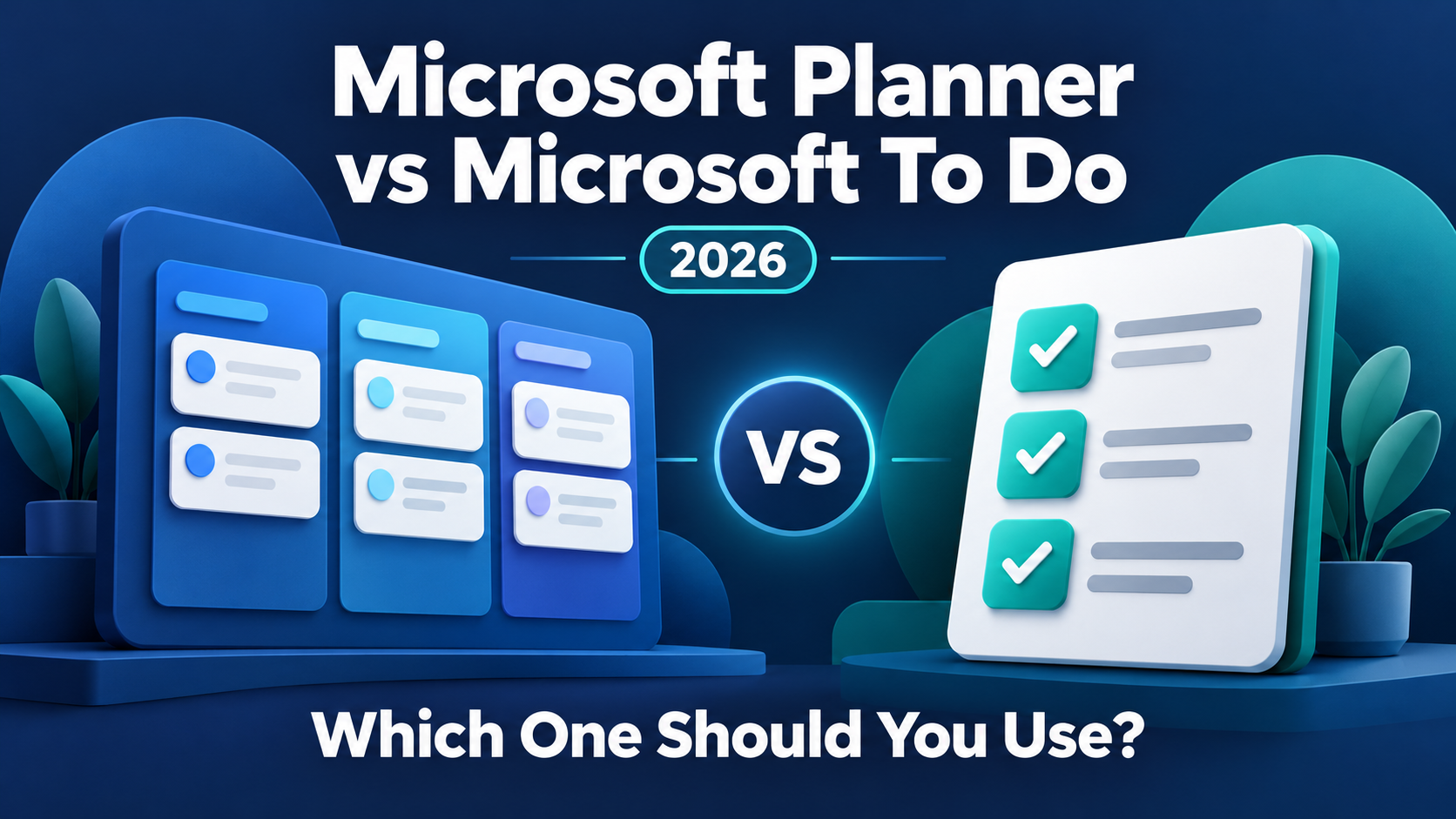
Choose Microsoft To Do if you mainly need a straightforward place to capture tasks, set reminders, and decide what to work on today. Choose Microsoft Planner if you need shared plans, task ownership, and visibility across a team’s work.
For many Microsoft 365 users, the best setup is to use both: Planner holds the shared work, while To Do helps each person focus on their own assignments.
The distinction has become less obvious because the newer Planner also includes personal task views, and Planner is now available in Outlook on the web and the new Outlook for Windows.
Features and US pricing checked October 2026 against official Microsoft documentation. Availability depends on your account, licenses, and organization settings.
Microsoft Planner vs To Do: The Quick Comparison
The most useful starting point is the kind of work you need to organize.
| Tool | Best starting use case | Organization | Cost to consider |
|---|---|---|---|
| Microsoft To Do | Personal responsibilities and a manageable daily list | Lists, task details, and My Day | Free with a personal Microsoft account; work accounts have eligibility requirements |
| Microsoft Planner | Shared delivery, project coordination, and team visibility | Plans, tasks, assignments, and multiple views | Basic Planner is included in eligible Microsoft 365 subscriptions; premium features cost extra |
| SelfManager.ai | Planning by date, recording work, tracking time, and reviewing progress with AI | Dated workspaces with tables for different areas of work and life | Individual $8/month; Team $30/month with unlimited free collaborators |
The pricing distinction matters: To Do is free for personal accounts, while basic Planner may already be included in your organization’s subscription. SelfManager uses separate flat subscription pricing.
To Do is a good starting point when your question is, “What do I need to get done?”
Planner becomes useful when your question expands to, “Who is doing what, and how is the shared work progressing?”
SelfManager.ai is worth considering when you also want to answer, “What actually happened across my days, and what should I learn from it?”
What Microsoft To Do Does Well
Microsoft To Do is built around personal task management. You can create lists, add tasks, and choose a daily focus using My Day.
Task details support due dates, reminders, repeating schedules, smaller steps, notes, and files. This is enough structure for many everyday responsibilities.
For example, you could keep lists for:
- Work follow-ups.
- Household responsibilities.
- Personal admin.
- Learning.
- Tasks to discuss with your manager.
In the morning, choose a few tasks for My Day. The larger lists hold your commitments, while the daily view helps you focus.
That separation is useful when you have more tasks than you can complete today. Everything does not need to compete for attention at once.
My Day is a daily focus view
My Day clears at midnight. Unfinished tasks remain in their original lists, so clearing the view does not delete the work.
This lets you choose a fresh focus each day.
However, if you want to revisit the exact mix of work you planned for a particular Tuesday, consider how you will preserve that context. A daily focus view and a dated work record serve different needs.
To Do also supports simple collaboration
To Do supports shared lists, and tasks in those lists can be assigned to members.
A shared checklist may be sufficient for a household, a small recurring process, or a few responsibilities handled by colleagues.
The decision to move to Planner should come from needing more visibility or coordination. Sharing a task with another person does not automatically mean you need a full project board.
What Microsoft Planner Does Well
Planner gives shared work more structure.
You can create a plan, organize tasks into buckets, assign responsibility, and track progress. Task details can include dates, priority, checklists, notes, attachments, and comments.
For example, a small team preparing a website launch could organize work into:
- Content.
- Design.
- Development.
- Quality checks.
- Launch preparation.
Each task can have an owner and a due date. Team members can see the work in context instead of receiving disconnected reminders.
Basic Planner includes Grid, Board, Schedule, and Charts views. Premium plans add capabilities such as timelines and dependencies, depending on the license.
The benefit is shared visibility. You can discuss the state of the work using the same plan.
Planner now handles personal work too
It would be misleading to describe Planner as exclusively for teams.
The newer Planner includes My Day, My Tasks, private tasks, personal plans, and views that bring together assignments from Microsoft 365 sources.
For someone who already spends the day in Teams, Planner may provide enough daily focus without opening a separate To Do app.
That makes the choice partly about where you work. The simpler standalone To Do experience still has value, but Planner can now cover more of the individual workflow.
What Changed with Planner in Outlook?
Microsoft now makes Planner available in Outlook on the web and the new Outlook for Windows. Its documented experience brings personal tasks, shared plans, and assigned work alongside email.
This matters because email often creates the next task. Bringing work management closer to the inbox can reduce the effort of switching between applications.
It does not mean Microsoft To Do has been retired. Microsoft’s Planner FAQ states that the changes do not affect existing To Do scenarios or functionality.
If To Do already works well for you, there is no reason to migrate simply because Planner has become more visible.
If you mainly work in Outlook and coordinate shared delivery, try the Planner experience available to your account. Check the Outlook version and your organization’s settings before expecting the same interface everywhere.
Can You Use Microsoft Planner and To Do Together?
Yes. Microsoft documents an integration that displays your Planner assignments in To Do’s Assigned to me list.
From there, you can bring an assignment into My Day and work through your responsibilities alongside other tasks.
A practical setup is:
- Create and organize shared work in Planner.
- Assign each task to its responsible person.
- Enable the Planner connection in To Do, where available.
- Select the relevant assignments for My Day.
- Return to Planner when you need the wider project context.
Use the matching work account. If the connection is missing, check licensing and enabled access with your administrator.
Avoid creating a second copy of every assignment
Suppose Planner already contains “Review homepage copy,” assigned to you.
Use the connected assignment in your daily view rather than manually creating another task with the same title. Two independent copies can develop different due dates or completion states.
A separate personal task makes sense when it represents a different action. “Ask the client which homepage version they prefer” might support the shared review without duplicating it.
The aim is to make today’s responsibilities easier to see while keeping the shared plan reliable.
Which is Better for Individual Daily Planning?
For a straightforward daily checklist, start with Microsoft To Do.
It is particularly suitable when you want quick capture, reminders, recurring responsibilities, and a small daily focus list.
Consider a fictional working day:
- Finish a proposal.
- Reply to an accountant.
- Review a document.
- Buy groceries.
- Book a medical appointment.
To Do gives those tasks a simple place to live. You can decide which belong in My Day without building a project structure for each one.
Planner is worth considering if your personal work already connects to several shared plans or if you prefer working from Teams or Outlook.
The best daily tool is the one you will check during the work, especially when your morning plan changes.
Which is Better for a Small Team?
Choose Planner when several people need to coordinate delivery and see progress.
A shared checklist can work for a short, simple process. A plan becomes more helpful when you need to review ownership, deadlines, and the state of multiple workstreams together.
For a fictional three-person campaign, Planner could hold tasks for copy, visuals, approval, and publication preparation. The team can inspect the shared plan while each person focuses on their own assignments.
Before upgrading to premium, identify the missing capability. Basic views and assignments may already cover the work.
Dependencies or a more detailed timeline can justify an upgrade. Having a team of five people, by itself, does not.
Microsoft Planner vs To Do Pricing
The pricing comparison needs to separate basic access from premium capabilities.
| Product or tier | US pricing checked October 2026 | What to understand |
|---|---|---|
| Microsoft To Do | Free with a personal Microsoft account | Work or school account access has licensing and Exchange Online requirements |
| Basic Microsoft Planner | Included in eligible Microsoft 365 subscriptions | It may already be available to your organization at no extra license cost |
| Planner Plan 1 | $10 per user/month, paid yearly | Adds premium project-planning capabilities |
| Planner and Project Plan 3 | $30 per user/month, paid yearly | Adds more advanced project capabilities |
Check your region, taxes, and purchase terms before buying. The Microsoft premium prices above are per user and based on annual payment.
For a small business already paying for eligible Microsoft 365 subscriptions, basic Planner may be the sensible first choice. Its incremental license cost could be zero.
If five people each need a Planner Plan 1 license, the listed rate equals $50 per month, or $600 per year. That calculation covers those premium licenses; check any other subscriptions your workflow requires.
Do not assume everyone needs the same upgrade. Microsoft documents some ways for users with basic access to interact with premium plans, while advanced capabilities require the appropriate paid license.
What About AI and Copilot?
Microsoft is adding AI capabilities to Planner. Its current updates describe Planner Agent in Microsoft Copilot, including natural-language questions and task creation or updates.
Access to a basic plan does not automatically establish access to every AI feature. Check the specific capability, Copilot requirements, and your organization’s configuration.
For your buying decision, identify the job you want AI to do:
- Draft a shared project plan.
- Help update task details.
- Explain project status.
- Summarize recorded work.
- Suggest the next period’s priorities.
Those jobs require different context. Test the feature with the work you actually manage before deciding whether it is worth an additional subscription.
If Neither Workflow Fits: Consider SelfManager.ai
SelfManager.ai is worth considering if your central need is planning and reviewing work by date.
Each day has its own workspace, with tables for different areas such as client delivery, business development, learning, and personal responsibilities. Tasks can sit alongside notes, comments, and tracked time.
For a freelancer or solo founder, this creates a record of the day as the work happens. Decisions and progress remain attached to the relevant dates.
Its AI features can summarize tables, generate plans for up to 31 days per request, and review recorded work across a week, month, or quarter. You can review the output before using it.
SelfManager.ai is an installable web app with no calendar sync. It is a stronger fit when you want dated work records and AI reflection; Planner remains a stronger choice when Microsoft 365 project coordination and advanced dependencies are essential.
Try SelfManager.ai free for seven days, with no credit card required, if you want to experience planning, time tracking, and AI work reviews in one workflow.
Individual costs $8/month or $6/month billed annually at $72, with 35 AI credits per week. Team costs $30/month or $25/month billed annually at $300, with unlimited free collaborators and 70 AI credits per week. Additional AI credits are optional purchases.
Which One Should You Choose?
Choose Microsoft To Do when you want a simple personal task system and daily focus.
Choose Microsoft Planner when you need shared plans, ownership, and visibility across workstreams.
Use both when your organization coordinates work in Planner and you prefer To Do for your daily responsibilities.
Consider SelfManager.ai when you want dates to organize your work, task-level time tracking, and AI reviews grounded in what you recorded.
Start with one real week of work. Capture the responsibilities, choose the day’s priorities, and check whether the system helps you act and explain your progress.
If dated planning and work reviews are the missing pieces, try SelfManager.ai’s seven-day free trial.
Frequently Asked Questions
Is Microsoft Planner replacing Microsoft To Do?
The newer Planner brings together more Microsoft task-management experiences, but Microsoft says existing To Do scenarios and functionality are unaffected. To Do remains available as its own app.
Is Microsoft To Do free?
Yes, with a personal Microsoft account. Work or school accounts have eligibility requirements, including the necessary access and Exchange Online mailbox support.
Can Microsoft To Do be used by a team?
Yes. It supports shared lists and assigning tasks to members of those lists. Planner provides more structure when you need shared plans, multiple views, and wider progress visibility.
Can Planner tasks appear in Microsoft To Do?
Yes. Microsoft documents a Planner connection that shows assigned tasks in To Do’s Assigned to me list. The integration depends on account access and enabled settings.
Do you need to pay extra for Microsoft Planner?
Basic Planner is included in eligible Microsoft 365 subscriptions. Premium capabilities and some AI experiences have additional licensing requirements.
Does the new Planner include My Day?
Yes. Planner includes My Day and other personal task views, so its current experience covers individual focus as well as shared work.
Date-based AI Task Manager
Plan smarter, execute faster, achieve more
Create tasks in seconds, generate AI-powered plans, and review progress with intelligent summaries. Perfect for individuals and teams who want to stay organized without complexity.
Get started with your preferred account