
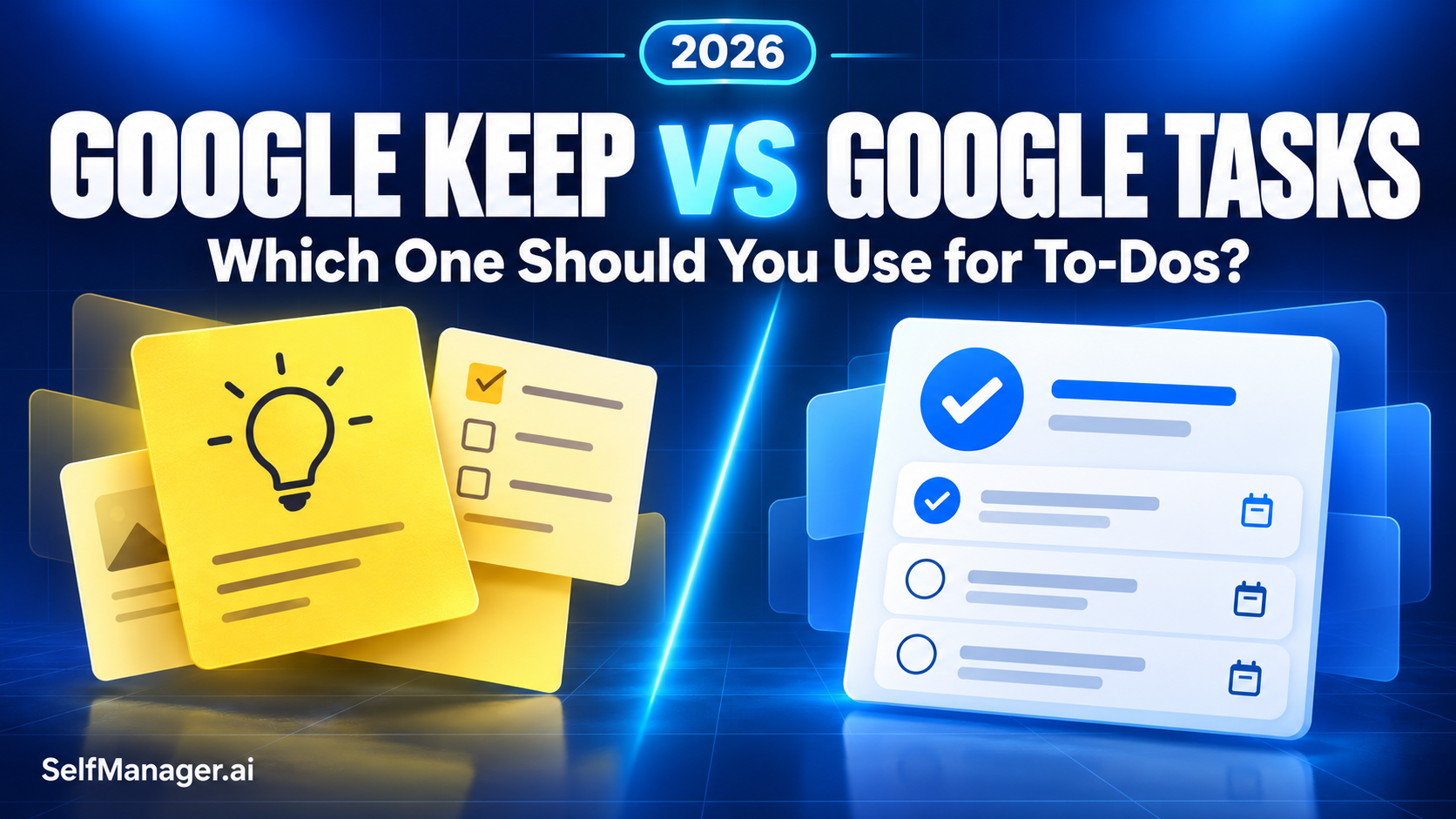
Google Keep vs Google Tasks (2026): Which One Should You Use for To-Dos?
Article 6 of 10 · google-keep-vs-google-tasks.md
Use Google Keep when a to-do belongs with notes, ideas, images or a shared checklist. Use Google Tasks when the main requirement is a dated action you want to complete, repeat or see in Google Calendar.
The two apps also work together more closely than older comparisons suggest. Keep reminders now use Google Tasks, so a note can provide context while its reminder appears in your task system.
You do not necessarily need to choose one exclusively. The useful decision is where each kind of information belongs.
Features checked October 24, 2026, using official Google documentation.
Google Keep vs Google Tasks at a glance
| Tool | Main unit | Best everyday use | Organization | Pricing |
|---|---|---|---|---|
| Google Keep | A note, which can contain a checklist | Capture ideas, reference information and collaborative checklists | Labels, colors and pinned notes | Free for core personal use |
| Google Tasks | An action item | Manage commitments, dates, repeat schedules and email follow-ups | Task lists, subtasks and dated Calendar entries | Free for core personal use |
| SelfManager.ai | A table attached to a date | Keep daily work, context, tracked time and AI review together | Dated tables and period overviews | Individual $8/month or $72/year; Team $30/month or $300/year |
The core distinctions follow the products’ documented features. SelfManager.ai’s prices are its published monthly and annual rates.
SelfManager.ai is included for readers whose needs extend beyond this two-app comparison. The main choice between Google's tools remains notes and checklists versus actionable commitments.
The key difference: keeping information or following through
A note does not always need an action.
“Ideas for the next presentation” may contain observations, links and a rough outline. It belongs somewhere you can capture and develop it without treating every line as unfinished work.
“Send the presentation draft on Thursday” is a commitment. It benefits from a clear completion state and a date.
That distinction explains much of the Google Keep vs Google Tasks decision:
- Keep: What do I want to remember or collect?
- Tasks: What have I committed to doing?
Both can contain text and things to check off. Their organizing models encourage different habits.
1. Notes and checklists: Google Keep is the natural fit
Google Keep supports notes, lists, photos and drawings. That makes it useful when the information is still taking shape or needs visual context.
For example, a note about a room redesign might contain a photo, measurements, ideas and a shopping checklist.
Keep is useful for:
- Brainstorming before you know the next action.
- Shopping and packing checklists.
- Reference information you need repeatedly.
- Short notes from a conversation.
- Images or sketches that give an idea context.
Labels, colors and pinning help organize the collection. You can keep important notes visible without assigning an artificial deadline to them.
Where it becomes less convenient
A note can accumulate many unrelated actions.
If you write five commitments in a meeting note, ask whether you will remember to open that note at the right time. Keeping the information is only part of the job.
When an item becomes a real commitment, give it a clear action and decide whether it belongs in Tasks.
2. Dated actions: Google Tasks is the clearer starting point
Google Tasks is designed around individual to-dos. You can add details and subtasks, set dates and receive notifications.
Tasks can also be created from an email in Gmail, with a route back to the original message.
That suits work such as:
- Reply to a particular email.
- Submit an application.
- Book an appointment.
- Review a document.
- Complete a recurring administrative task.
Why individual tasks help
A task title should tell you what to do.
“Conference” is a topic. “Register for the conference before Friday” is an action.
You can still keep supporting information elsewhere. Tasks does not need to become the home for every idea connected to the activity.
What to check
Task details and subtasks can be helpful, but a long collection still requires decisions.
A list of fifty actions will not choose today's priorities for you. Keep the next step clear and review items that are no longer relevant.
3. Reminders changed: Keep now uses Google Tasks
This is the update older comparisons often miss.
Google announced the migration of Keep reminders to Tasks in October 2025. Its current help documentation explains how those reminders can be viewed and managed across Keep, Tasks and Calendar.
The practical result is that a Keep note and a task reminder can support the same commitment.
For example, you might keep your appointment questions in a note and add a reminder to revisit them.
What this means on your phone
Google's help documentation says reminder notifications no longer come from Keep. Install Google Tasks or Google Calendar and allow notifications to receive them on your mobile device.
You can return to the original note through the “From Keep” reference in the task details.
What happened to location reminders?
Google says you can no longer create or receive Keep's location-based reminders.
If an older review recommends Keep specifically for an alert when you arrive at a location, that advice no longer reflects the documented behavior.
4. Calendar planning: choose Tasks for dated commitments
Google Tasks works directly with Google Calendar. Dated tasks appear on the calendar, and you can create or edit tasks there.
Google's current documentation also describes start times and task duration. That makes Tasks useful when you want an action to have a visible place alongside appointments.
A practical example
Suppose you need to prepare for a call.
Use a task such as “Review the proposal before the call,” then choose an appropriate date and time.
The appointment tells you when the conversation happens. The task tells you what you need to do beforehand.
A Keep note can hold the questions or observations you want available during the call.
Do not confuse a planned session with a deadline
“When I intend to work on it” and “when it must be finished” are different pieces of information.
Check the available task settings rather than using the same date for every purpose. A clearer distinction makes it easier to understand what actually needs attention.
5. Recurring work: Google Tasks provides repeat schedules
Google Tasks supports repeating tasks, including daily, weekly, monthly and yearly schedules.
That makes it a useful starting point for activities such as a weekly review, a monthly expense check or a recurring personal reminder.
Check the restrictions
Google documents limitations for recurring tasks. Shared tasks and subtasks cannot be set to repeat, and recurring tasks cannot be moved to another task list.
If a routine has several steps, test the structure before relying on it. A simple repeating task may fit; a more detailed repeating checklist may need a different arrangement.
6. Sharing: Keep is convenient for a shared note or checklist
Google Keep lets you add collaborators to a note. That suits a shared shopping list, packing checklist or collection of ideas.
However, personal organization does not become a shared system automatically. Google notes that labels, colors and pins on shared notes are visible only to the person who applies them.
What about shared tasks?
Google Tasks also participates in collaboration through other Google products.
Google documents task creation and assignment in Chat spaces, and task assignment from Docs for eligible Workspace accounts.
That is a different workflow from simply adding a collaborator to a Keep note.
Choose based on the collaboration you need: editing the same checklist, assigning responsibility or following work inside an existing Google workspace.
7. Organization: labels and pins versus task lists
Keep's labels, colors and pins help you find information. Tasks' lists and subtasks help you organize actions.
For example, a Keep label called “Travel” could collect booking details, ideas and checklists. A Tasks list called “Travel preparation” could hold the actions you have decided to complete.
You do not need a matching structure in both apps.
A useful rule is to keep one primary home for each commitment. Avoid maintaining two independent versions of the same action, because completing one may leave the other looking unfinished.
A simple workflow using both apps
Imagine you are arranging a weekend trip.
In Google Keep
Create a note for:
- Places you might visit.
- Accommodation ideas.
- Useful reference information.
- A packing checklist you can share.
In Google Tasks
Create dated actions for:
- Book the accommodation.
- Check the travel arrangements.
- Confirm arrival details.
The note holds the evolving information. The tasks hold the commitments you want to act on.
For a reminder attached to a Keep note, use the existing connection to Tasks rather than creating another unrelated reminder for the same purpose.
If neither fits: when SelfManager.ai is worth considering
You may want a broader workspace if your difficulty is keeping a day's tasks, working context and progress together.
SelfManager.ai organizes work into dated tables. A day can contain work tasks, personal responsibilities, notes and supporting material, with time tracking available for individual tasks.
AI Plan can help draft dated work, while AI Review can help interpret the activity you recorded over a selected period.
That suits a question such as: “What did I actually work on this week, what remained open and what should I do next?”
The trade-off is additional structure and a paid subscription. If Keep and Tasks already cover your notes and reminders, there may be no reason to add another app.
SelfManager.ai's Individual plan is $8 per month or $72 per year, equivalent to $6 per month. Team is $30 per month or $300 per year, equivalent to $25 per month, with unlimited collaborators.
Start your 7-day free trial if you want to test that daily planning and review workflow.
Which one should you use?
Choose Google Keep if:
- You capture ideas before deciding what to do.
- Photos, sketches or reference notes matter.
- You want a shared checklist.
- You prefer organizing notes visually.
Choose Google Tasks if:
- Your entries are mostly concrete actions.
- You want dated work visible in Calendar.
- Recurring commitments matter.
- You create follow-ups from Gmail.
Use both if:
- Keep is your home for information.
- Tasks is your home for commitments.
- You can maintain that distinction without duplicating work.
Frequently asked questions
Is Google Keep better than Google Tasks for to-do lists?
Keep suits checklists attached to notes or shared information. Tasks suits individual commitments with dates, repeat schedules and Calendar visibility. Choose according to how you use the list.
Do Google Keep reminders appear in Google Tasks?
Yes. Google migrated Keep reminders to Tasks. Reminder details can include a “From Keep” reference that returns you to the original note.
Can Google Keep still send location-based reminders?
No. Google's current help documentation says you can no longer create or receive location-based Keep reminders.
Does Google Tasks support subtasks and recurring tasks?
Yes, but not every combination is supported. Google documents that subtasks and shared tasks cannot be set to repeat.
Can I share a Google Keep checklist?
Yes. Add collaborators to the note containing the checklist. Personal labels, colors and pins remain your own organization settings.
Are Google Keep and Google Tasks free?
Their core personal features are free. Some capabilities in the wider Google ecosystem depend on account type or paid plans. SelfManager.ai is a separate product with a 7-day free trial followed by paid plans.
Date-based AI Task Manager
Plan smarter, execute faster, achieve more
Create tasks in seconds, generate AI-powered plans, and review progress with intelligent summaries. Perfect for individuals and teams who want to stay organized without complexity.
Get started with your preferred account